

In day-to-day IT management, it quickly becomes clear that rigid, predefined option lists are no longer sufficient. Every organization describes assets differently, categorizes tickets in its own way, and uses custom names for statuses, types, or priorities. That is why Codenica places strong emphasis on the ability to define custom option lists, tags, categories, statuses, and dictionaries tailored to the real way an organization operates. Whether you manage asset management, handle requests in a ticketing system, support users through a help desk or service desk, or create articles in a knowledge base, the ability to configure your own options simplifies daily work and helps maintain data consistency.
In this article, we will show you how to:
- turn any text field in asset management into a dropdown selection list,
- define custom options and classifications in the ticketing system,
- configure dictionaries for task statuses, requests, knowledge base solutions, and other system elements.
As a result, Codenica can be adapted to both simple use cases and more advanced IT processes, without forcing changes to the way your team works.
Dropdown lists in asset management - full control over your data
In asset management, the need for data standardization appears very quickly. Employee statuses, user roles, client types, asset conditions, or custom asset classifications all need to be consistent, readable, and easy to filter. That is why in Codenica every text field can be easily converted into a dropdown selection list, without writing code and without complex configuration.
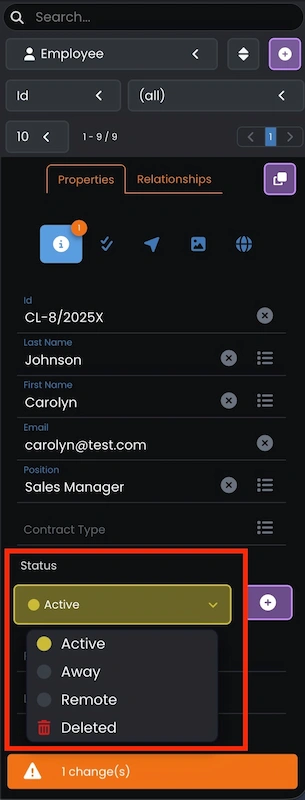
This applies to all elements managed within asset management, including employees, clients, hardware, software, and any custom asset models. For example, the Status field on an employee or client record can work either as a regular text field or as a dropdown list with predefined options.
In the settings of each text field, there are two independent mechanisms that allow you to build a selection list tailored to how your organization operates:
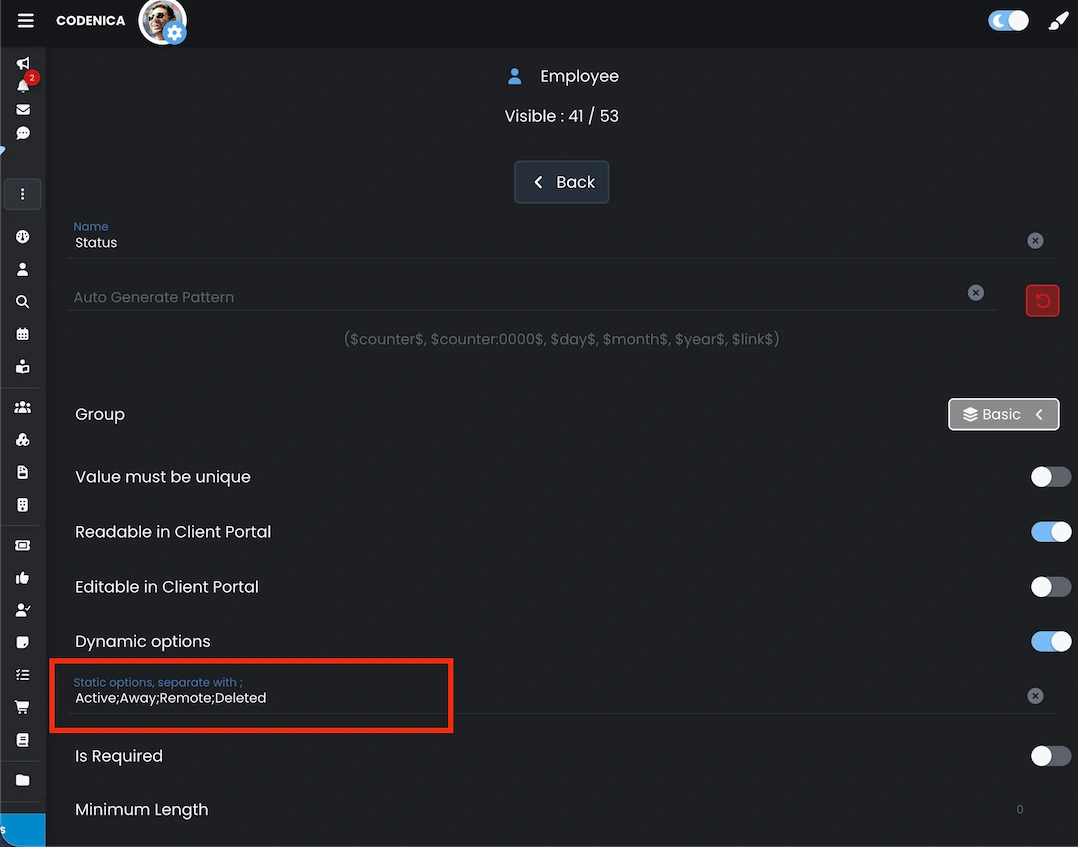
- Dynamic options - the system automatically builds a list of values based on data that already exists in the database. When enabled, a list icon appears next to the field, allowing users to select from previously used values. This is ideal in asset management scenarios where data evolves over time but naming consistency must be preserved.
- Static options - allow you to manually define your own list of values, such as asset statuses or categories. Simply enter the options separated by semicolons, and the field automatically becomes a classic dropdown with only those values available. This gives you full control over what can be stored in asset management.
Both static and dynamic options can be defined in any language, making it possible to create unique dictionaries tailored to your company structure, clients, or operating region. With this configuration, asset management becomes not only clearer and more consistent, but also significantly easier to filter, report on, and automate across IT processes.
Statuses, categories, tags, and other options in the ticketing system
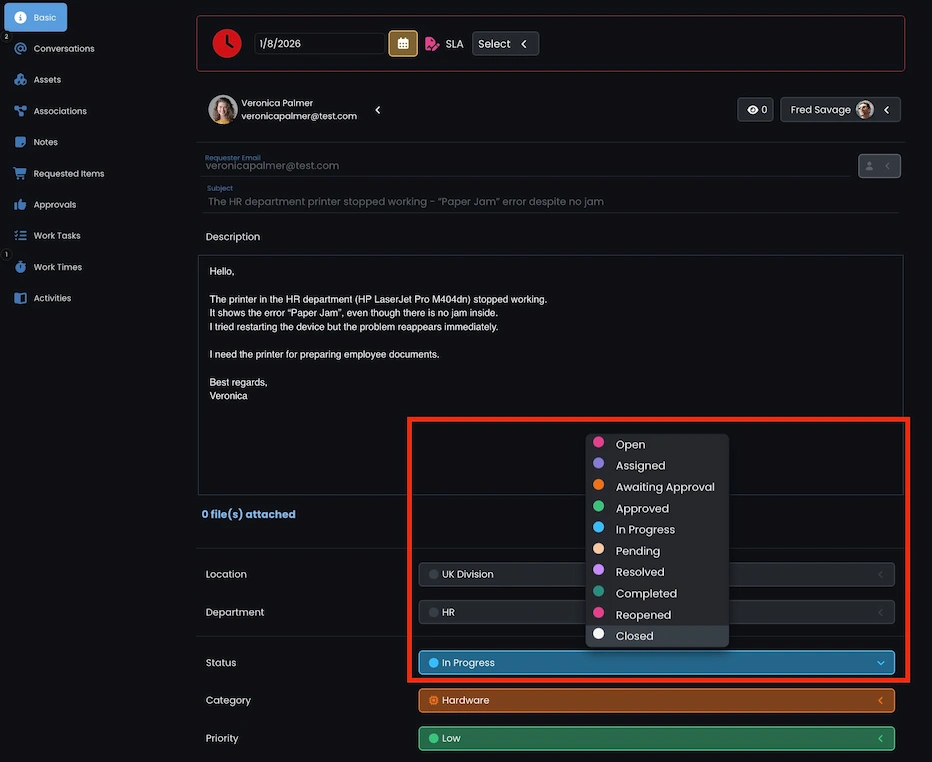
In a modern ticketing system, there is no single universal set of statuses, categories, or tags that works for every organization. An internal help desk operates differently than a service desk serving external customers, and IT teams working in an outsourcing or MSP model follow yet another approach. That is why in Codenica, the system user defines all selection options that appear in tickets.
You can independently decide:
- which statuses a ticket goes through during its lifecycle,
- which categories describe types of issues or services,
- which tags are used for additional ticket labeling,
- which priorities, departments, locations, or other classifications are available in the form.
Each of these options is fully configurable and can be adapted to the processes used in your help desk or service desk. As a result, the ticketing system accurately reflects the real way your team works instead of forcing you to adapt to a rigid tool. Additionally, every category, status, or tag can be color-coded, which significantly improves list readability and makes it easier to quickly assess ticket status. Colors are configured centrally in the system settings - details are described in a separate article: Setting Colors and Icons.
This approach makes the Codenica ticketing system open to virtually any IT process – from a simple internal help desk to an advanced service desk supporting multiple companies and contracts.
How to configure statuses and other fields in the ticketing system
Configuration of selection lists in the ticketing system is performed centrally in the settings and works in the same way as the mechanism used in asset management and inventory.
- Open the system Settings.
- In the Service Desk group, click Tickets.
If you are configuring other forms such as Changes, Problems, or Releases, select them in the same way from this group. - Go to the Properties tab.
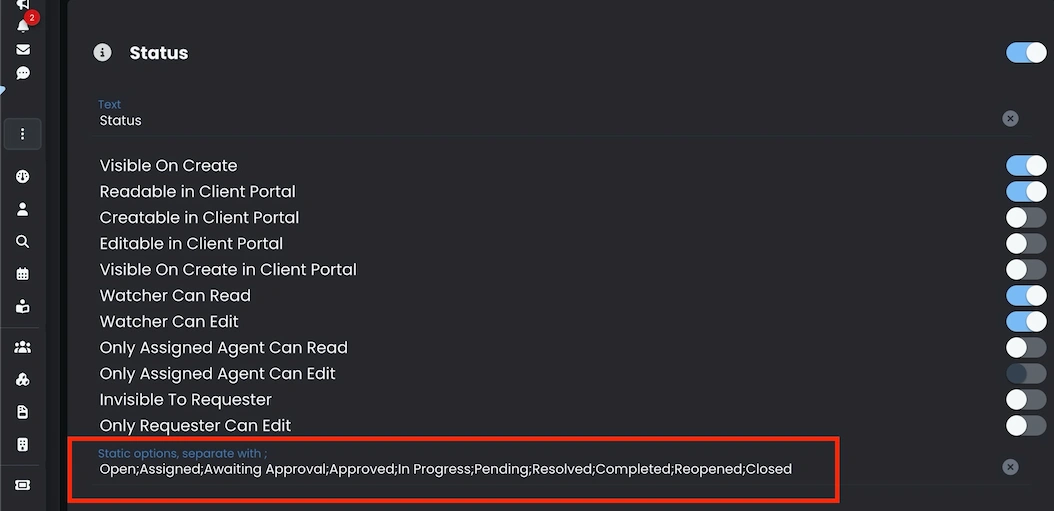
- From the list of available fields (over 60 properties for a ticket), find the Status property or another one you want to configure.
- In the Static options field, enter your own values separated by semicolons, for example:
New;In progress;Waiting for customer;Closed - Save the changes and restart the application-from that moment, the statuses will be available as a selection list in the ticket form.
The changes apply across all ticketing system forms and are effective both in the help desk agent interface and in the service desk client portal.
Statuses, categories, and tags for tasks, notes, requested items, knowledge base solutions, and other elements
The mechanism for defining custom selection lists in Codenica does not stop at asset management and the ticketing system. The same consistent configuration model is also available for other system elements, such as tasks, notes, requests, approvals, confirmations, and articles in the knowledge base. As a result, the entire system - regardless of the module - can operate based on unified, fully configurable dictionaries.
The system administrator decides which statuses, categories, sections, and tags apply in a given area. The system does not impose anything - there are no predefined or “rigid” processes. It is the user who defines what the lifecycle of a task, request, or knowledge base article looks like, adapting it to the real way the team works.
Selection lists can be defined, among others, for:
- tasks linked to tickets and assets,
- technical and operational notes,
- requested items and submissions,
- approvals and confirmations (for example, equipment handover or task completion),
- solutions and articles in the knowledge base.
Just like in the ticketing system, each of these options can also be color-coded, which significantly improves readability, makes filtering easier, and allows you to instantly recognize the status of an item in list and detail views.
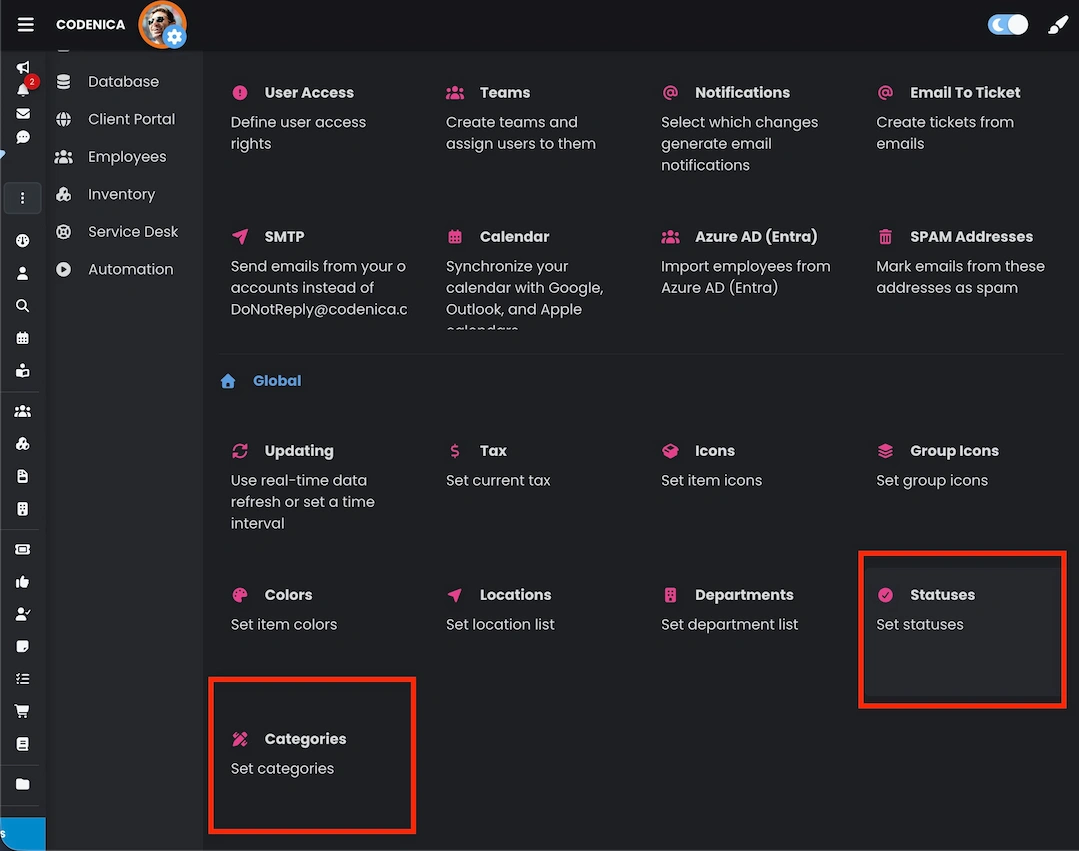
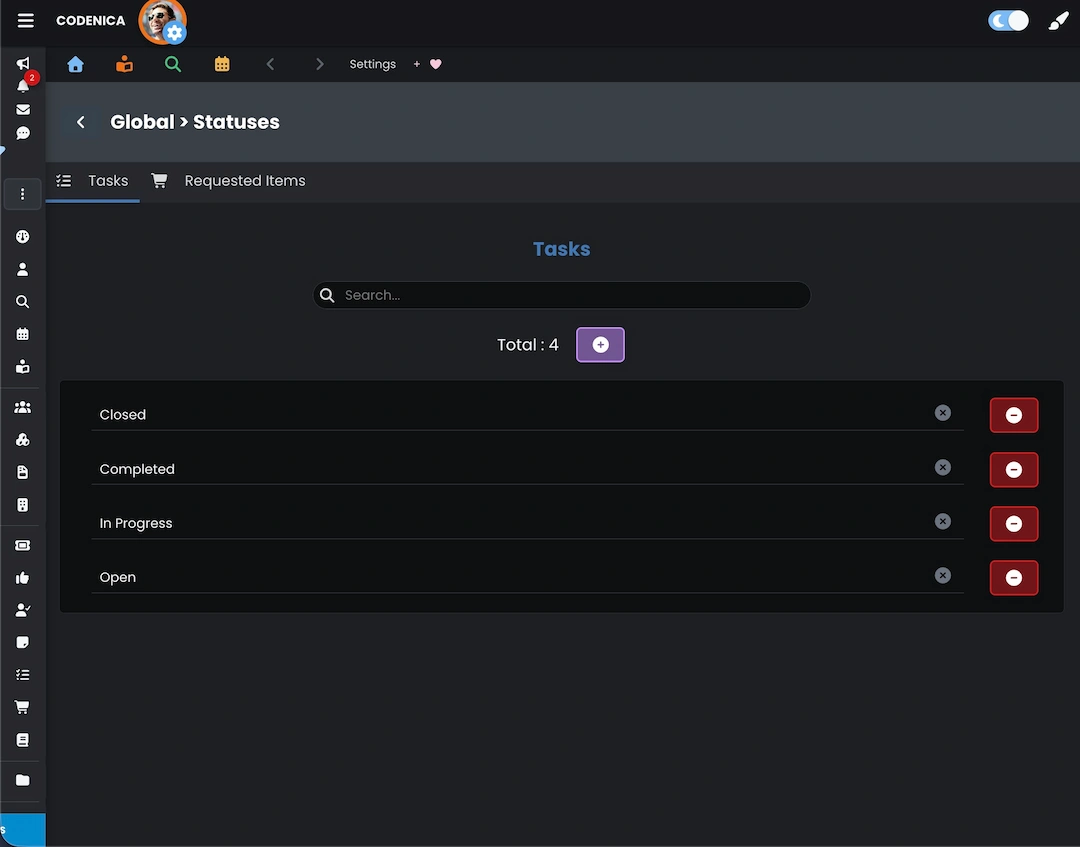
For articles in the knowledge base, a separate settings group is available. By navigating to Service Desk → Solutions, you can define custom categories, sections, and tags for articles. This allows you to build a clear, logical knowledge structure tailored to customers, employees, departments, or the types of issues being addressed.
Summary
The custom option list mechanism in Codenica was designed as a foundation of the entire system, not as an add-on for a single module. The same configuration principles apply to asset management and inventory, the ticketing system used for help desk and service desk operations, as well as tasks, requests, notes, and the knowledge base. As a result, users work within one consistent environment, regardless of which area of the system they are using. You decide which statuses, categories, tags, sections, and classifications exist in the system. There are no imposed schemas, closed dictionaries, or rigid processes. You can accurately reflect the exact working model used in your organization. Thanks to the ability to define both static and dynamic options, as well as assign colors to them, data remains clear, consistent, and easy to analyze.