

Introduction to icon and color customization
In everyday work with the Codenica system, interface clarity and quick recognition of key information are important. This applies both to working with individual objects in records and inventory and to navigating the tree-based data structure that includes IT assets, tickets, the knowledge base, notes, and other system elements. The application allows you to define custom icons and colors for selected phrases, property groups, categories, tags, statuses, and other elements visible throughout the interface. The same icons and colors are displayed in object details and auxiliary views, making it easier to recognize data types, property groups, and key information without reading long descriptions. This configuration applies not only to hardware properties but also to ticket categories in help desk and service desk, tags, statuses, IT asset records, and objects used in request handling processes. To configure it, simply assign an icon and color to a phrase. The system will apply the settings wherever that phrase appears. Even large inventories and record structures remain visually consistent and easier to navigate.
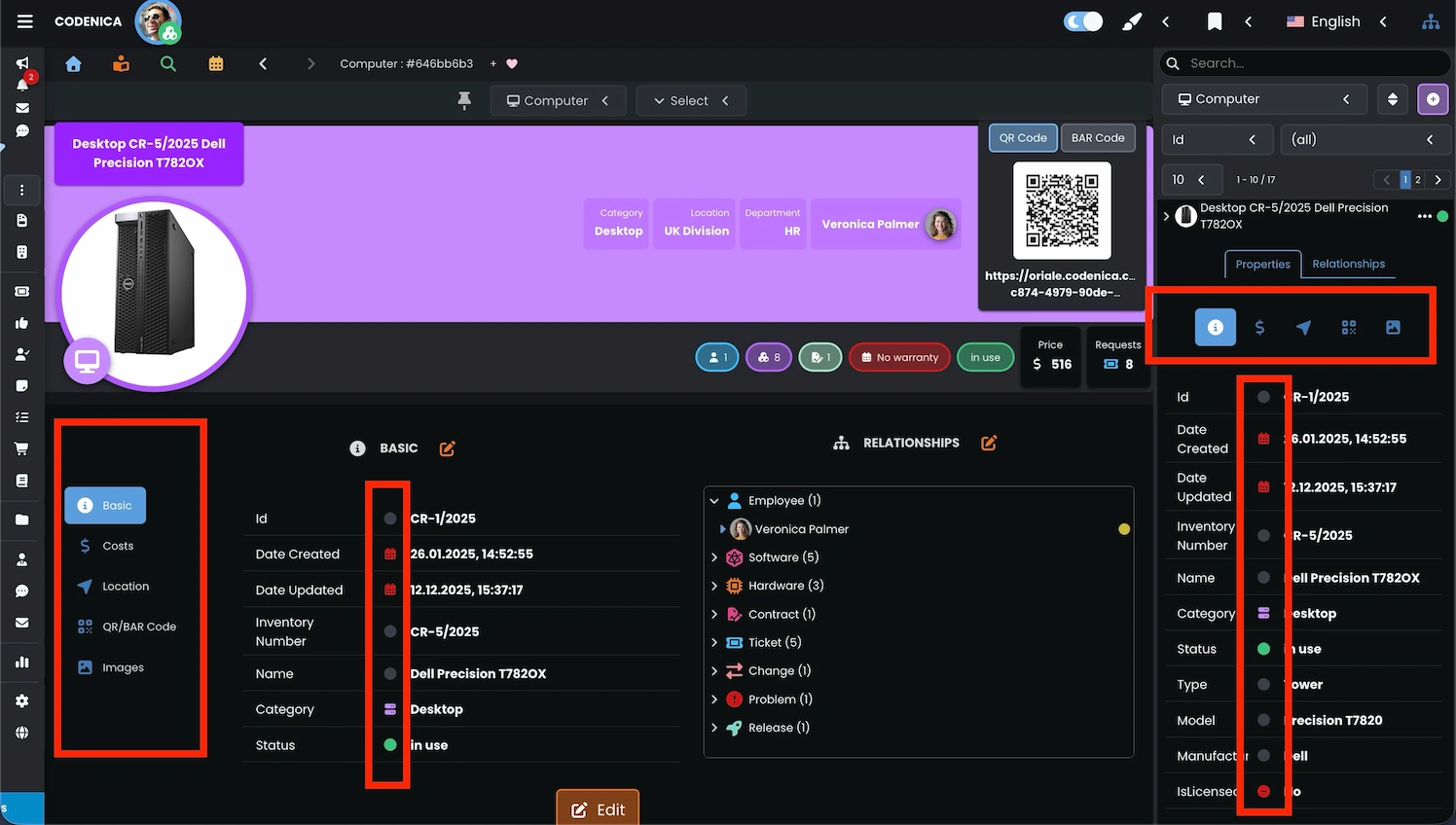
Configuring custom icons and colors in application settings
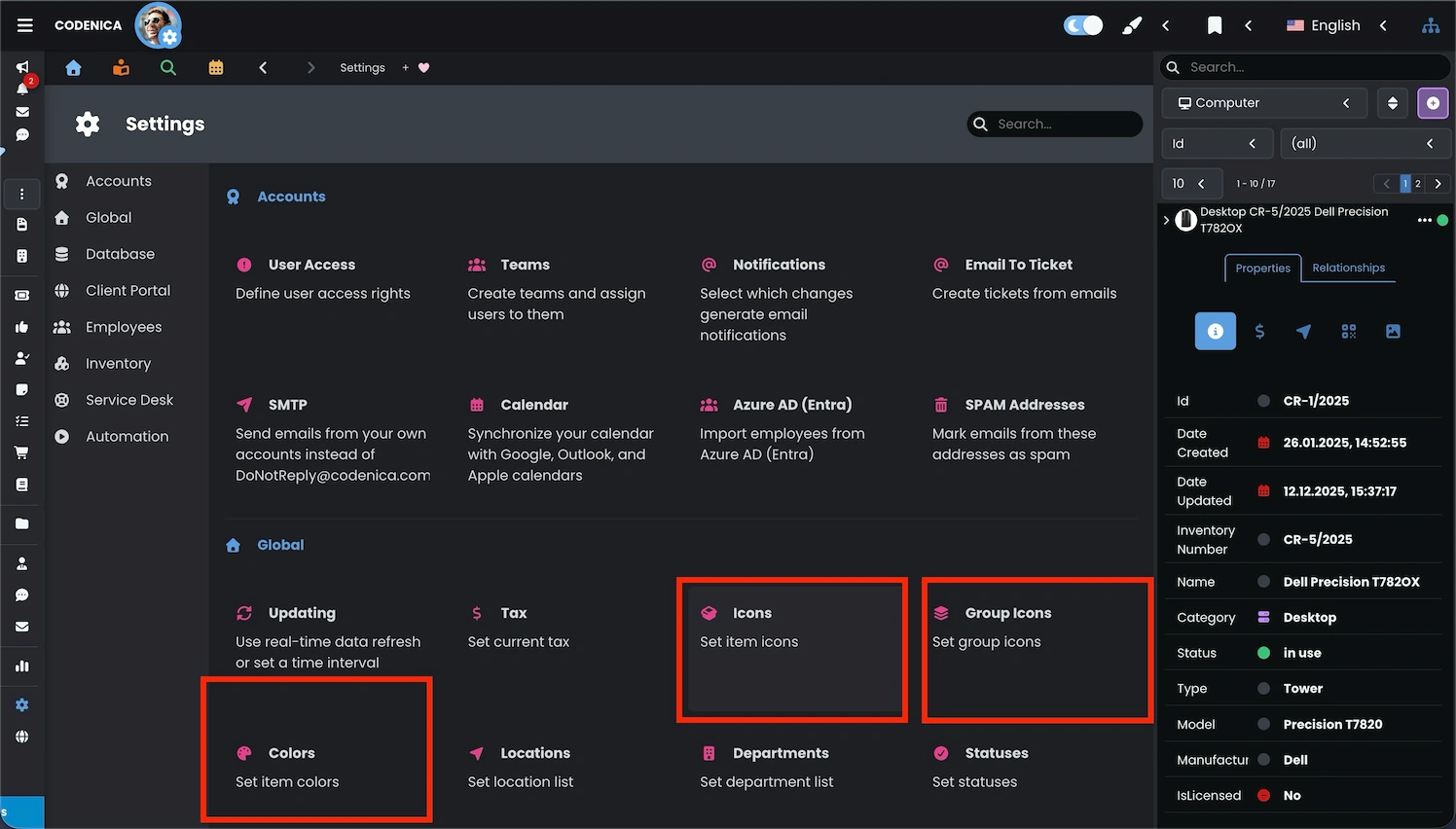
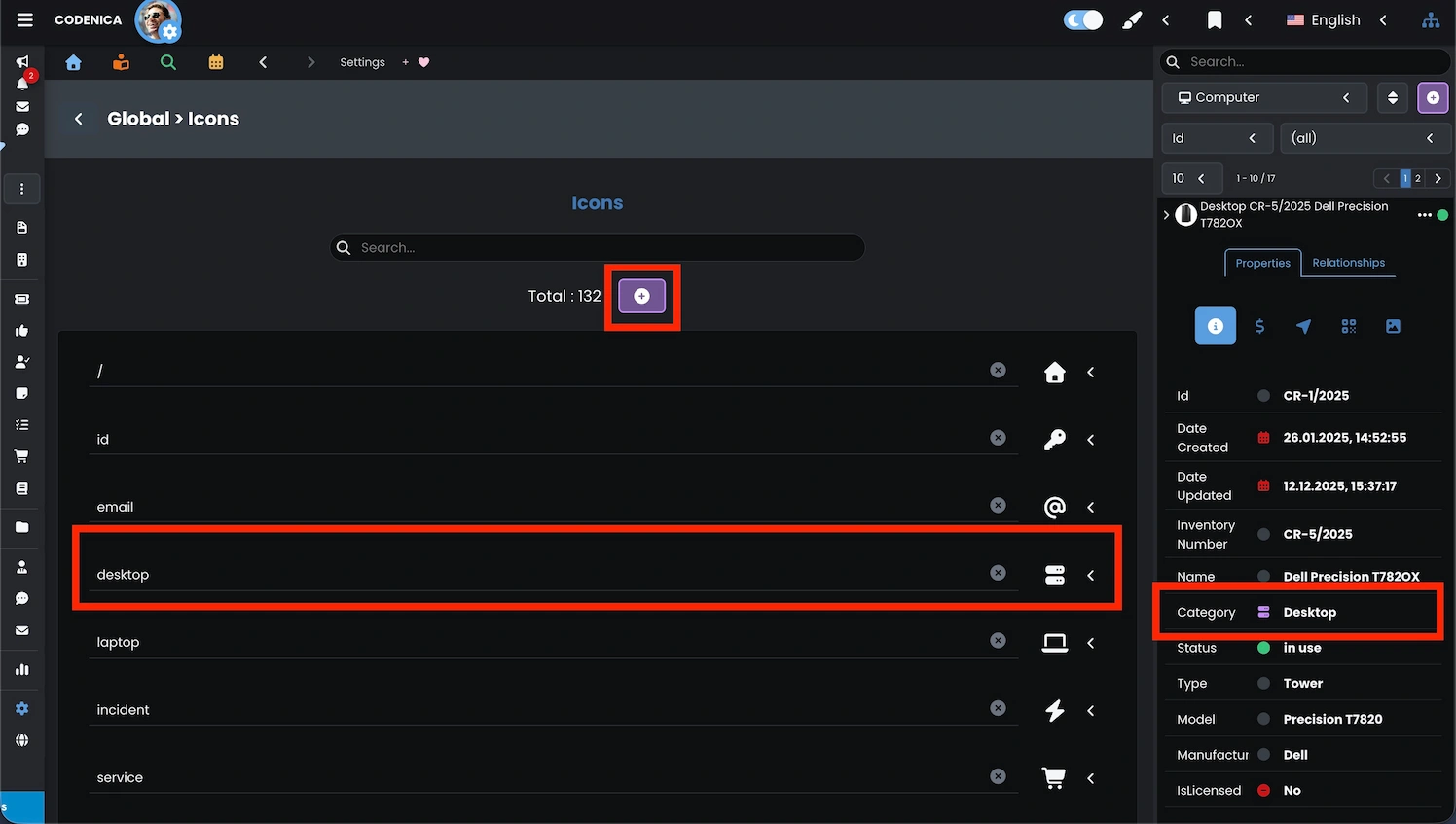
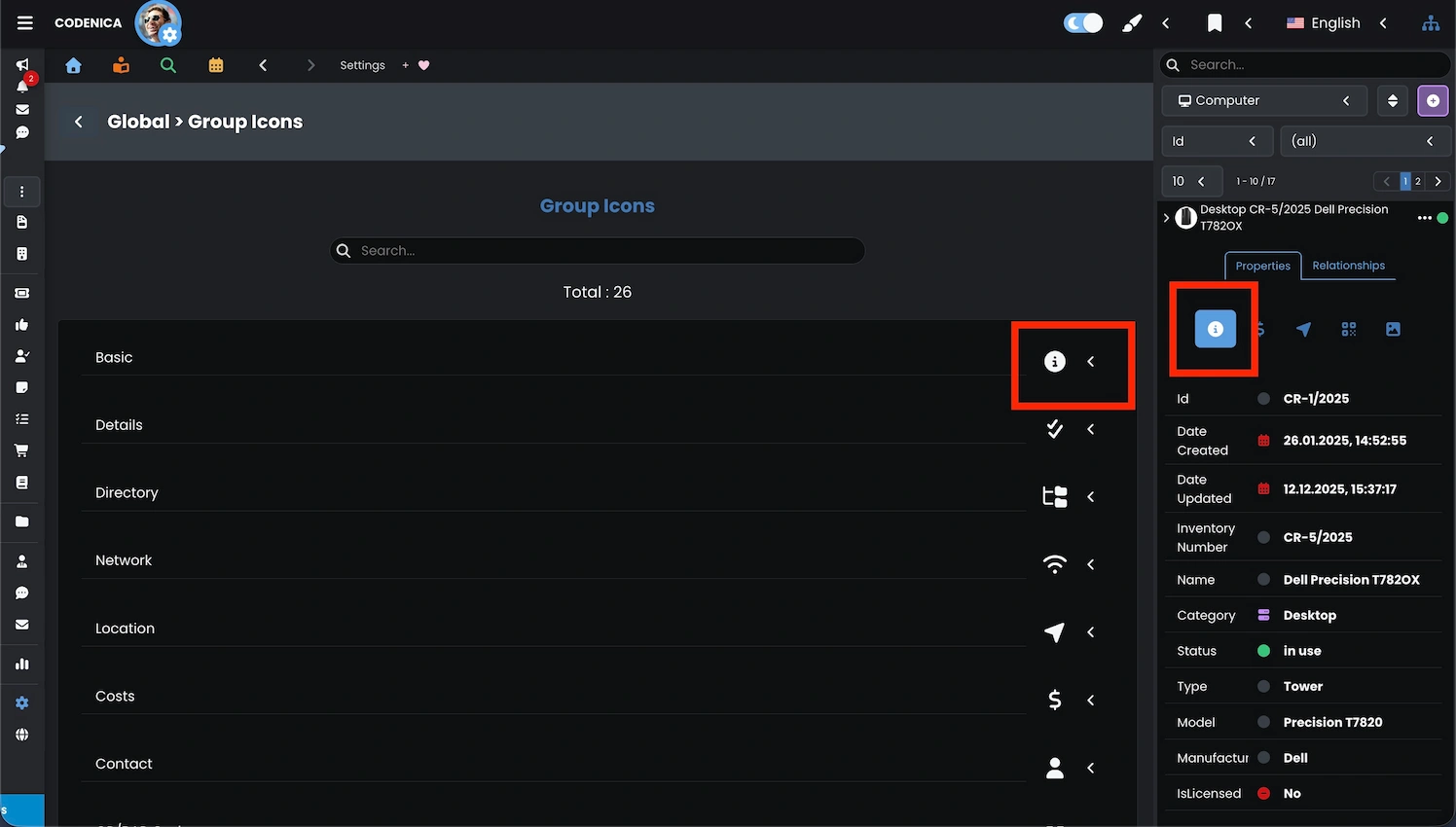
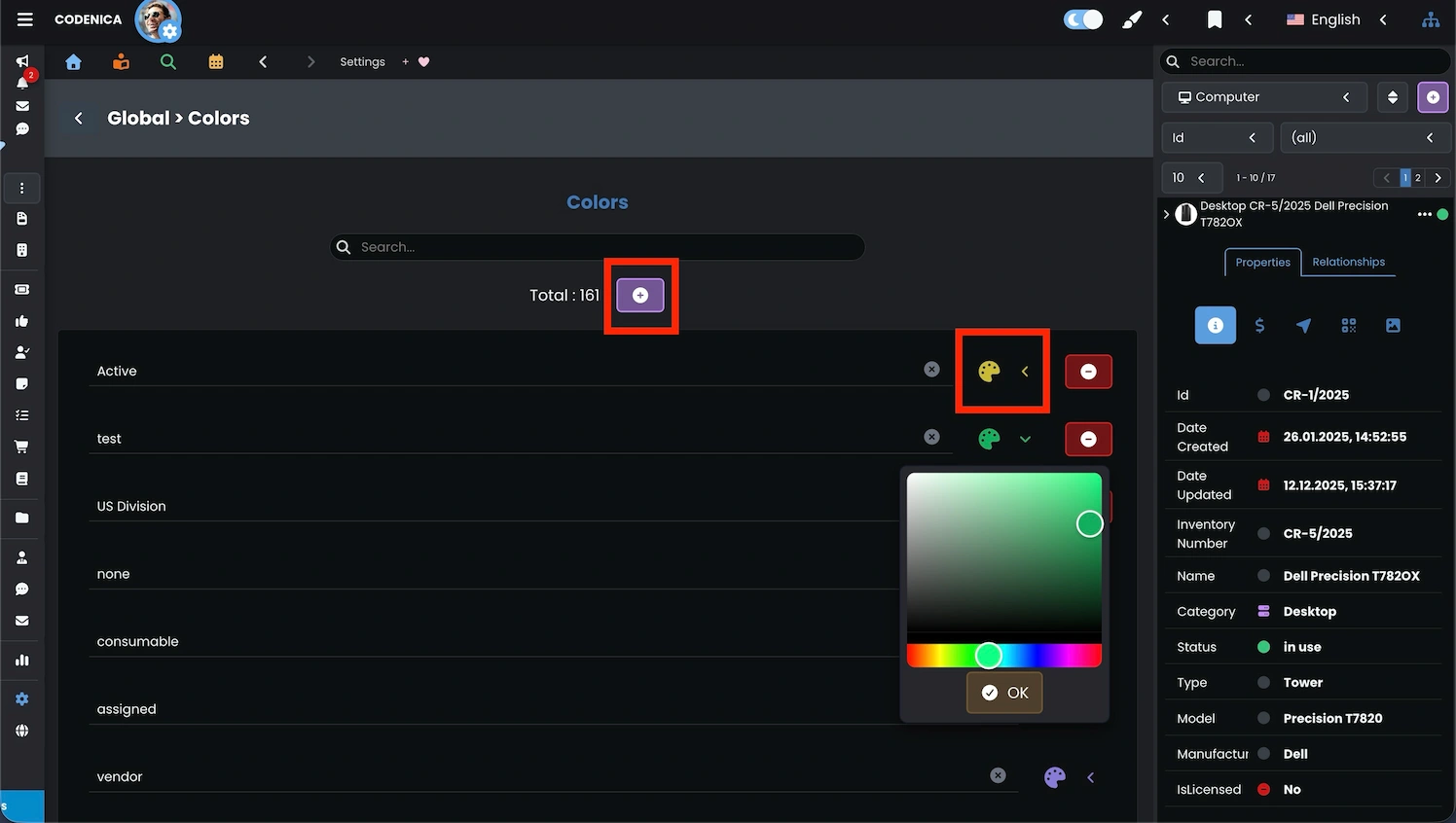
All configuration of custom icons, colors, and group icons is available directly in the application settings of Codenica. The mechanism is designed to be intuitive and does not require technical knowledge or changes to data structures. Visual customization can therefore be performed by administrators as well as users responsible for records, inventory, or organizing processes in help desk and service desk. In the settings, you define which icon and color should be assigned to a specific phrase. This can be a property name, property group, ticket category, status, tag, or any other system element. Once defined, the setting works globally. Wherever the phrase appears, it is automatically highlighted using the selected icon and color. This applies to IT asset records, inventory views, ticket lists, object details, and auxiliary panels. Colors and icons can reflect asset types, priorities, importance of information, or stages of ticket handling. Even with a large number of elements, configuration remains straightforward and can be completed in just a few steps.
Summary
Defining custom icons and colors may seem like a minor feature, but it has a noticeable impact on everyday usability. Visual markers help users navigate data structures more efficiently, move through records and inventory faster, and identify important information in object details, lists, and tree views. Consistent icons and colors support work in IT asset management as well as in the ticketing system, help desk, and service desk processes. Categories, statuses, tags, and property groups become easier to distinguish at a glance. This is particularly useful in environments with a large and growing number of tickets and assets. The configuration is simple. Once an icon and color are assigned to a phrase, the setting applies automatically throughout the application. This allows teams to align the interface with internal standards and working practices without additional tools or technical changes.