

What Is the Client Portal
The Client Portal is a separate end-user interface within the Codenica system. It is intended for individuals supported by the IT department - employees or external clients who want to report issues, review their tickets, and access assigned resources.
The portal operates in a web browser, is accessible from any device (phone, tablet, computer), and is connected to the same data environment as the main application module. Users can only see information they have been authorized to access by the administrator.
- Access to the knowledge base.
- Creating and reviewing tickets.
- Internal communication with the support team (chat and messages).
- Access to assigned assets and documents (if enabled).
- Access to assigned notes and confirmations (if enabled).
- Customizable portal appearance consistent with the company’s visual identity.
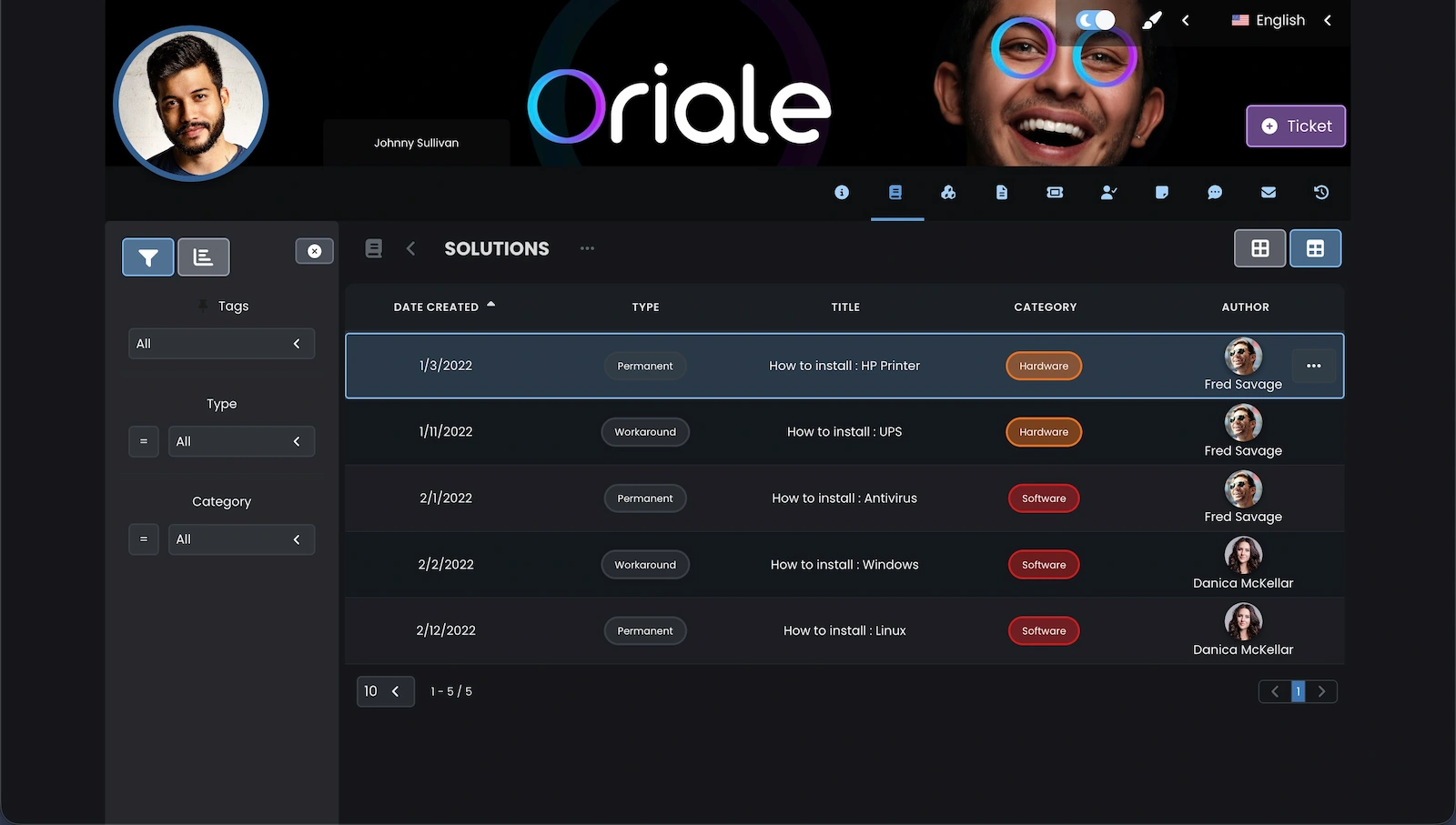
Administrators can customize the portal’s appearance by setting a company banner with logo, colors, and selected branding elements to match the company or IT department identity. The Oriale fictional company banner visible in the screenshot below is for demonstration purposes only - administrators can replace it with their own company banner.
How to Grant Access to the Client Portal
To allow an employee or client to use the Client Portal, an administrator or system agent must first create a user record and correctly fill in the email field. The email address becomes the user login for the Client Portal. The configuration process is simple and takes only a few minutes.
- Create or edit an employee or client account (for example: MENU → EMPLOYEES → ADD) and save the changes.
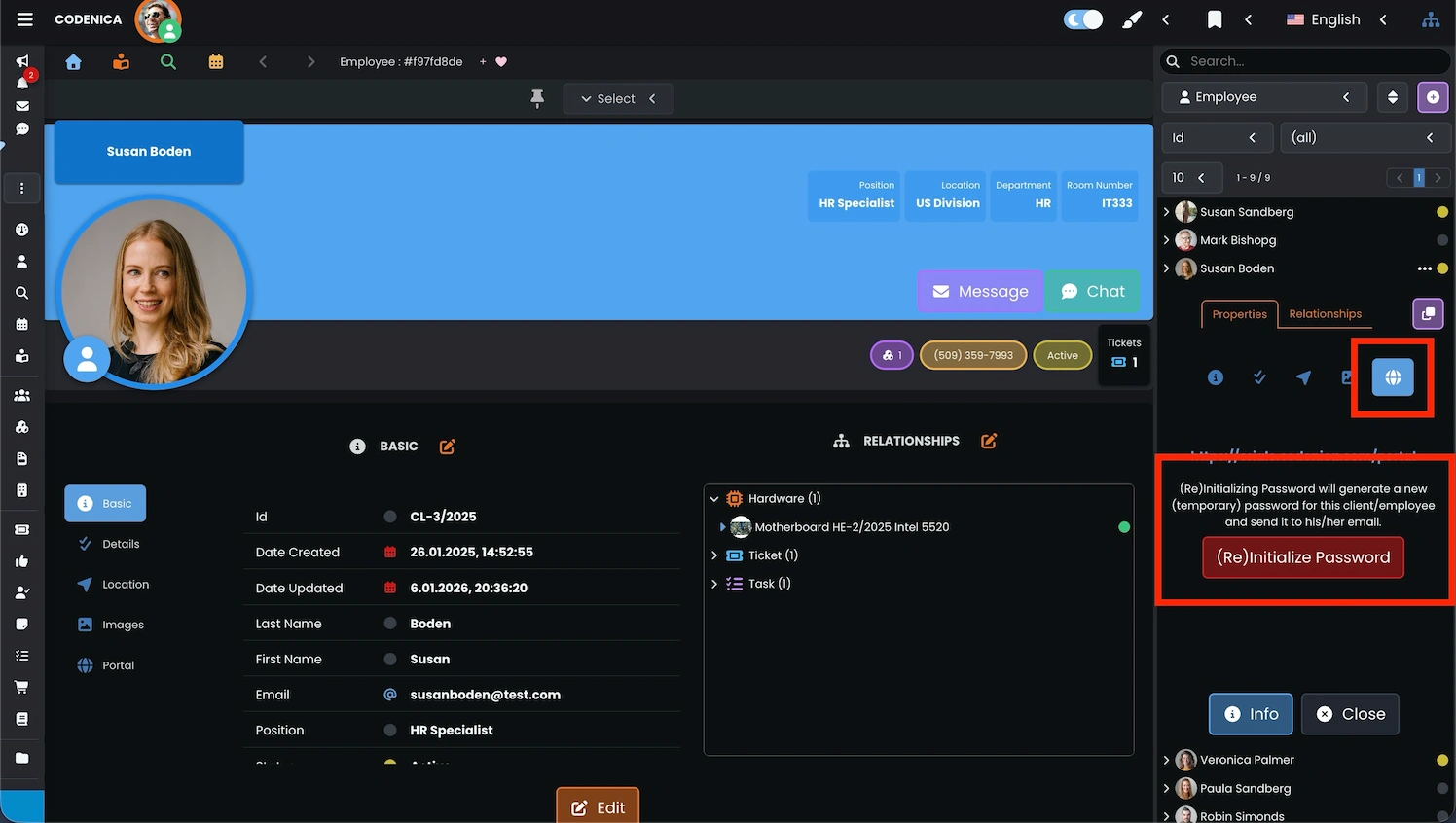
- Open the properties of the selected employee or client by clicking the Edit button (for example in the IT Manager panel visible on the right side of the application).
- Go to the Portal tab.
- Click the (Re)Initialize Password button (the properties panel must be in edit mode for the button to be active).
After clicking (Re)Initialize Password, the system creates a random access password and automatically sends it to the user’s email address. The password can later be changed by the user after the first login.
Alternative SSO Login (OAuth2)
Codenica supports Single Sign-On (SSO) based on OAuth2. The client or employee can log in to the Client Portal without entering a password by using a Microsoft or Google account.
In this case, authentication is handled by the selected provider. The Codenica system receives only a token confirming successful authentication along with the authorized user’s email address. This mechanism does not transmit passwords or other login data, making it a secure and recommended access method.
Who Uses the Client Portal
The Client Portal is intended for end users who do not manage the system but need communication with the IT department and access to their own tickets.
- External clients supported by an IT company.
- Internal employees reporting issues to the IT department.
- Users with limited system access.
The portal is not intended for administrators or agents responsible for handling tickets in the main application module.
What an Employee or Client Can Do in the Portal
- Create new tickets.
- Reply to existing tickets.
- Check status and communication history.
- Use the knowledge base to resolve issues independently.
- View assigned assets, documents, notes, and confirmations (if enabled by the administrator).
- Communicate with the support team via internal company chat and messaging system.
The scope of available features depends on the configuration defined by the system administrator.
Difference Between the Client Portal and the Main Application Module
The Client Portal is a simplified interface intended exclusively for end users supported by the IT department (employees or external clients). The main Codenica application module is designed for managing tickets, assets, system configuration, and automation.
- In the portal, users can only see their own tickets.
- They cannot modify assets or manage other users.
- They do not have access to system configuration or administrative settings.
The main application module is used by agents and administrators who handle requests, manage IT infrastructure, and configure processes.
Summary
The Client Portal in Codenica provides a structured communication space between end users and the IT department. It separates operational functions from administrative management and allows organizations to securely provide clients or employees access only to the system elements relevant to them. Through integration with the ticketing system, knowledge base, and communication modules, the Client Portal supports the daily work of Help Desk and Service Desk teams. Users have a single place for reporting issues, tracking ticket status, and contacting IT support. Implementing the Client Portal within ITSM processes improves transparency in ticket handling, organizes communication with the IT department, and reduces the need to use multiple tools. It is a practical extension of the main application module that supports collaboration between users and technical support teams.