
Codenica can email you a summary of your work. Depending on the sections you choose, it can cover tickets, tasks, assets, or calendar events. Codenica sends daily reports and replaces the daily report with a weekly summary on Sundays.
For an email when something specific happens, such as a ticket being assigned to you, use Email notifications.
Who receives reports?
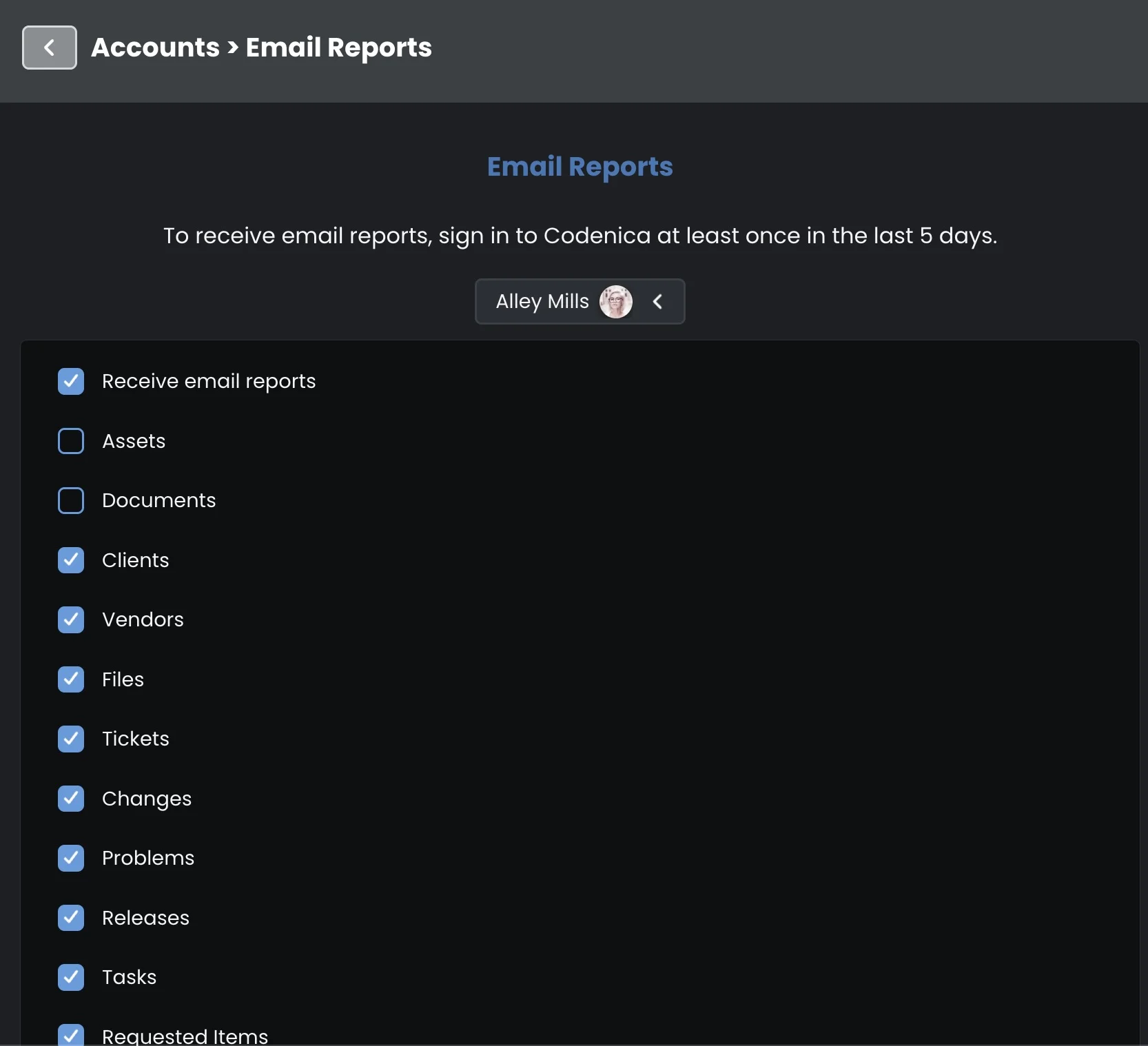
Administrators and Agents can receive reports at the email address on their account. At the time the report is prepared, reports must be enabled for the account and the recipient must have signed in to Codenica at least once in the past 5 days.
If you have been away for a while, sign in to Codenica. If reports are enabled for your account, you can receive the next scheduled report.
How do I turn on reports for an account?
- Sign in as an Administrator.
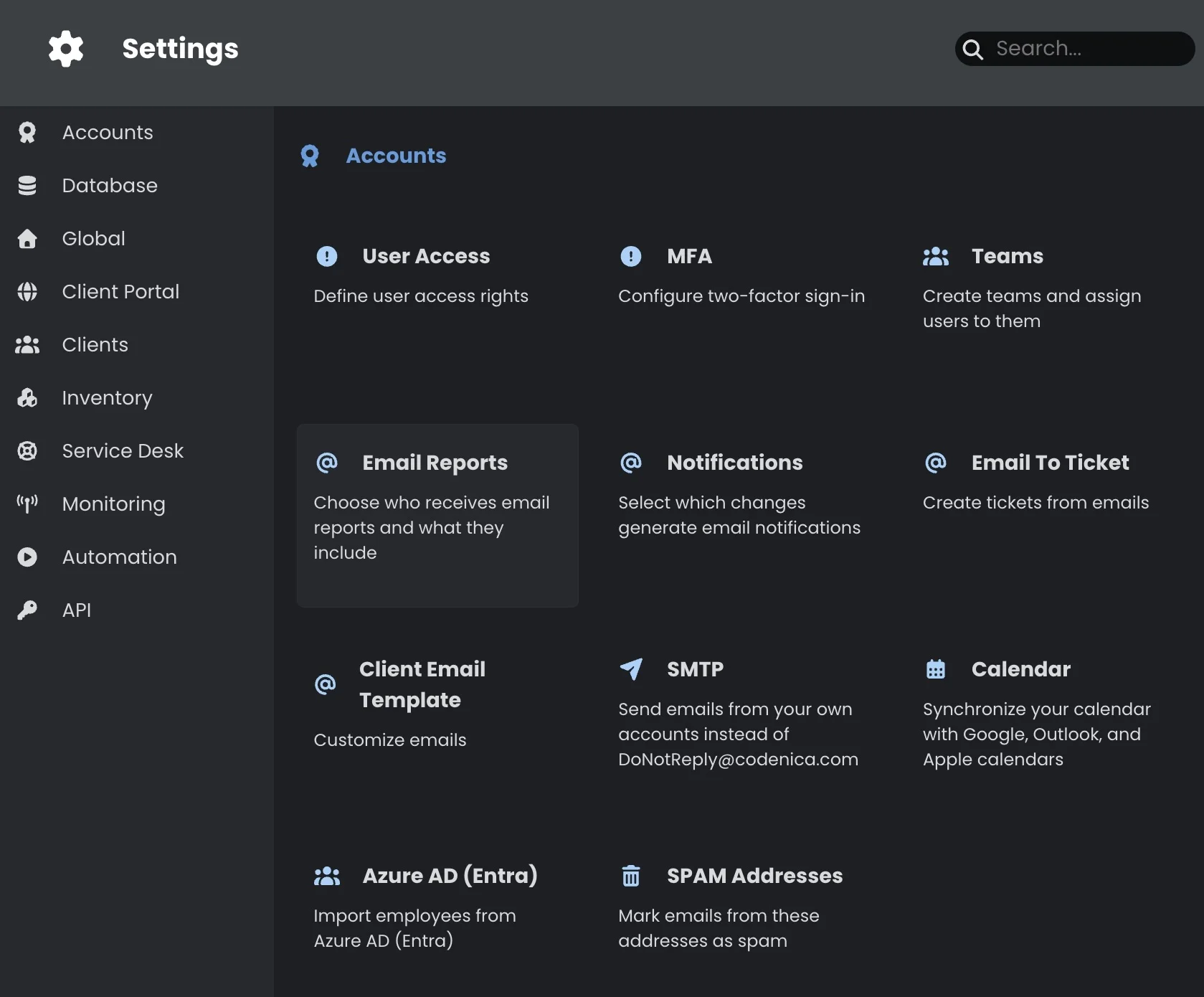
- Go to Settings → Accounts → Email Reports.
- Select an account from the list above the settings.
- Select Receive email reports and choose the sections to include.
- Click Save.
Each account has its own settings. For example, you can keep Tickets in an Agent’s report and clear Assets and Documents if they do not need those sections. The sections available depend on the modules covered by your license.
How do I turn off reports for one person?
Go to Settings → Accounts → Email Reports, select their account, clear Receive email reports, and click Save. If you use an Agent account, ask your Codenica administrator to make the change.
What should I check if a report does not arrive?
- Check that Receive email reports is selected for the right account and that the changes were saved.
- Make sure the recipient has signed in within the past 5 days and has the correct email address on their account.
- Check the spam folder. Changes take effect at the next scheduled send.
- In Codenica On-Premise, also check that an outgoing account for reports is configured under Settings → Accounts → SMTP.
See also
- Email notifications - Set up emails for events such as ticket assignments or status changes.