
If customers email your support team, Codenica can create tickets from those messages. It uses the subject as the ticket title, the body as the description, and the sender's address as the requester address. If the message matches an open ticket from the same sender, Codenica adds it to that ticket. It checks the subject, including the ticket number if present.
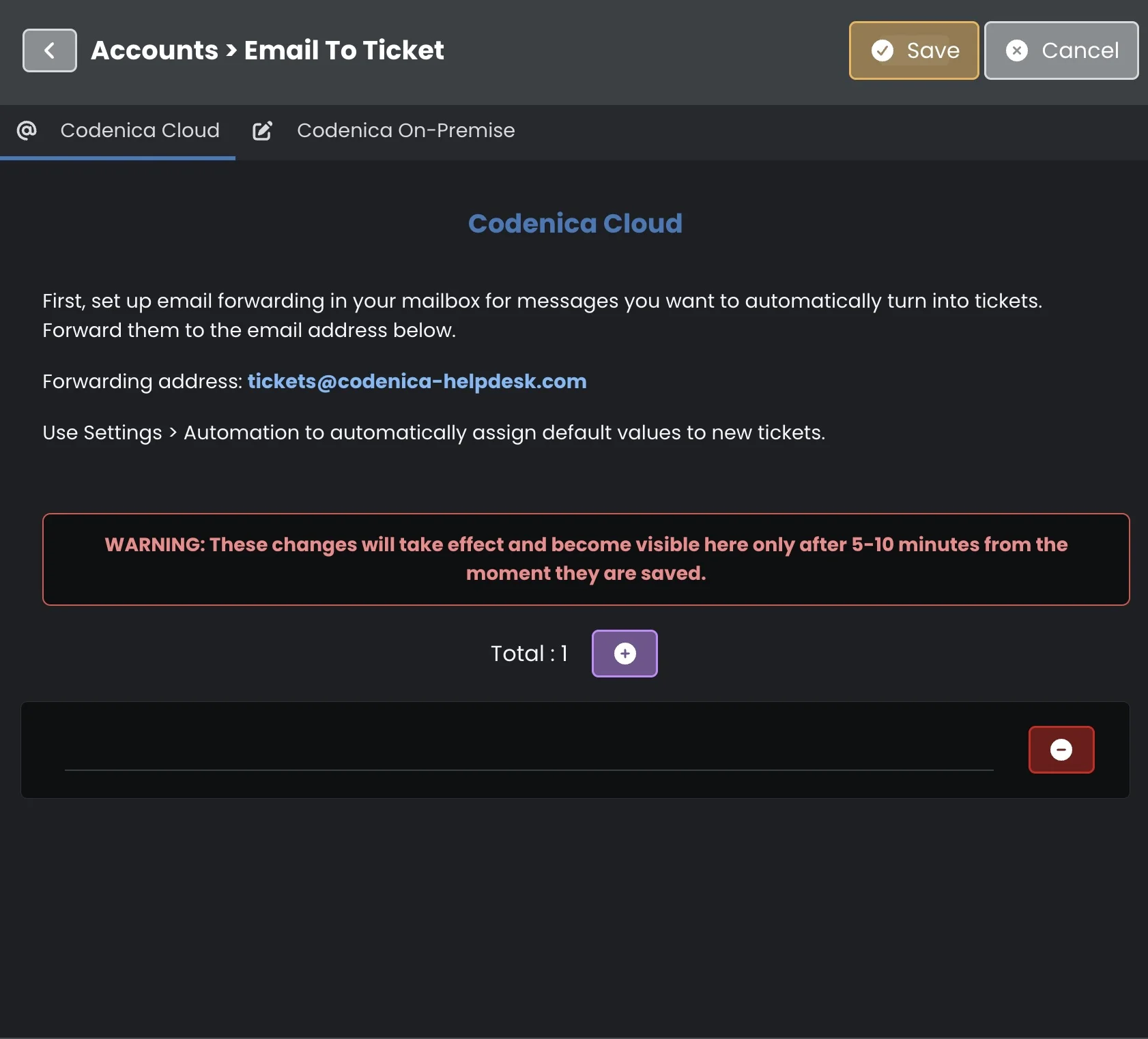
Open Settings → Accounts → Email To Ticket. This feature requires a Helpdesk or Service Desk license. Choose the setup for your edition of Codenica.
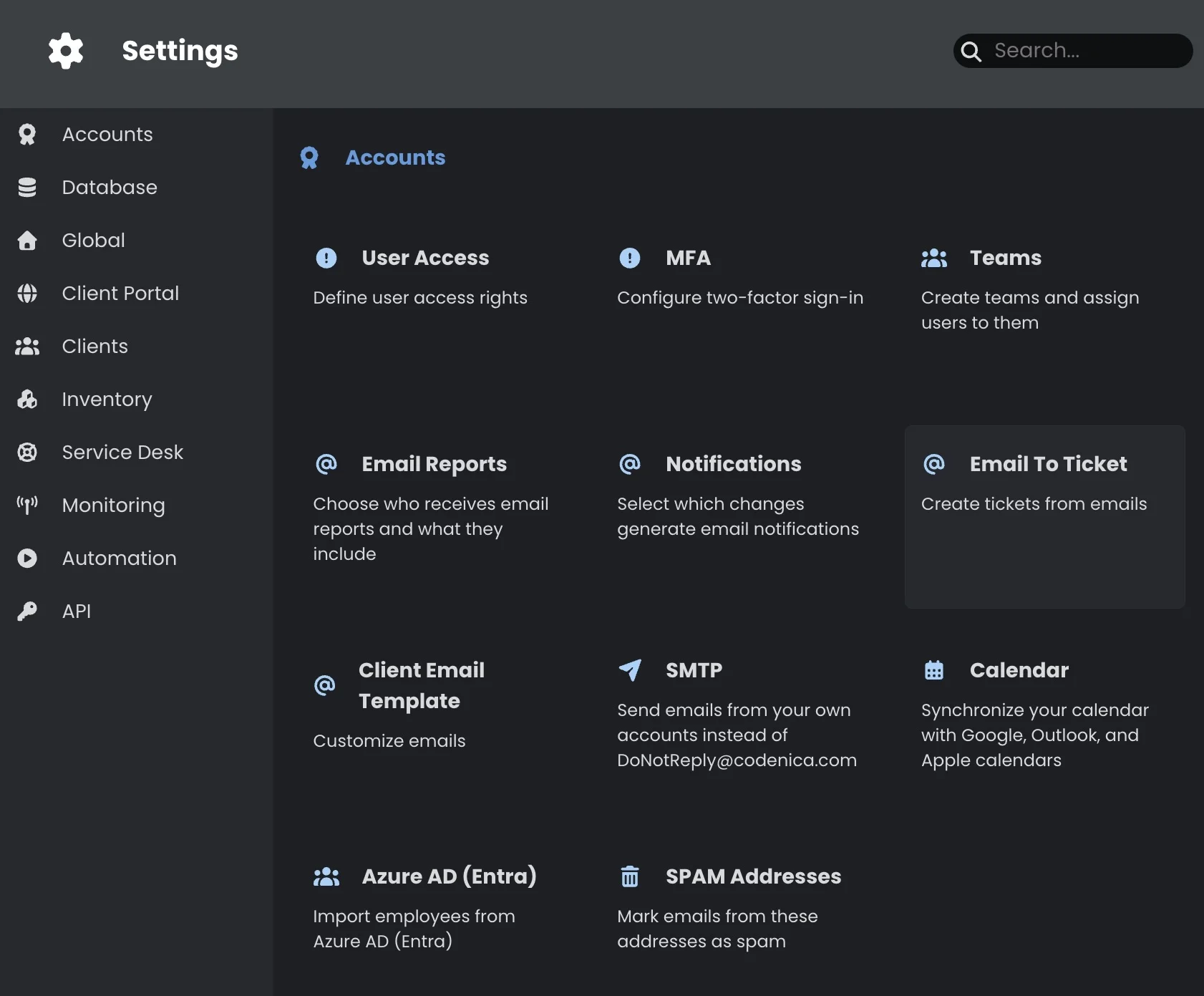
Codenica Cloud: forward mail from your support inbox
- In your mail system, set up automatic forwarding to [email protected]. Use a rule if you only want to forward some messages.
- On the Codenica Cloud tab, click + and enter the support address your customers write to. Use a dedicated inbox address. An address already used by a Codenica user account cannot be added to the list.
- Click Save. As indicated on the screen, wait 5 to 10 minutes before testing.
- Send a new message with a subject and body to your support inbox and check the ticket list. The forwarding rule should keep your support address among the recipients so Codenica can route the message to your organization.
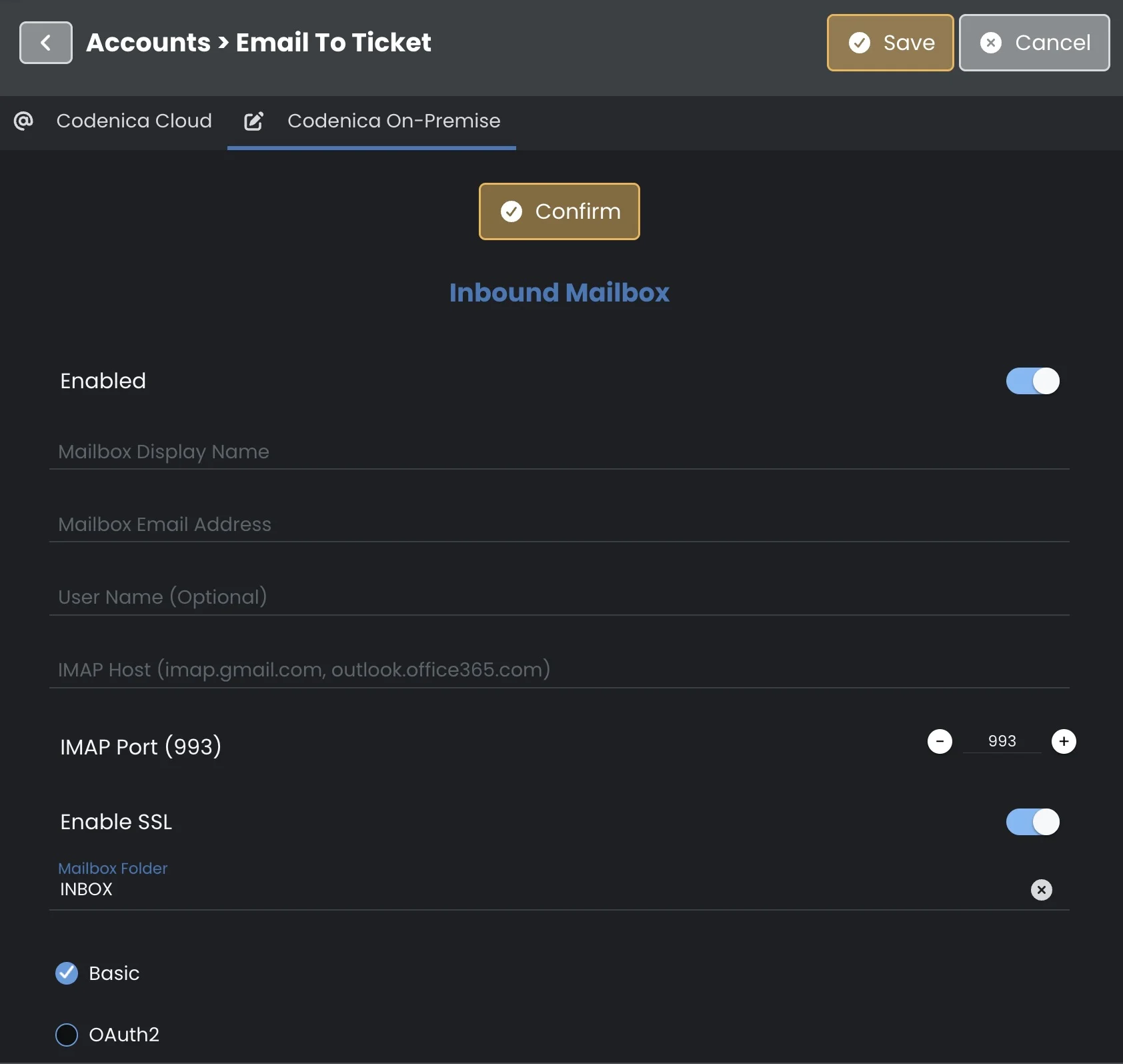
Codenica On-Premise: connect an inbound mailbox
- On the Codenica On-Premise tab, click + to add a mailbox.
- Enable it and enter a display name, email address, and the connection settings supplied by your mail provider. IMAP with SSL typically uses port 993. The default folder is INBOX. Enter a user name if it differs from the email address.
- Choose a sign-in method. Basic uses the mailbox password or an app password if your provider offers one. If OAuth2 is available for your provider in this installation, select it and connect your account.
- Click Confirm in the mailbox form, then Save at the top of Settings. Send a new test email to the mailbox and leave it unread until Codenica imports it.
Codenica checks enabled mailboxes regularly. It imports unread messages and marks them as read after successful processing. With Gmail and OAuth2, it looks for unread messages across the mailbox regardless of the Mailbox Folder setting. When connecting an existing mailbox, bear in mind that older unread mail can also be imported.
What should I check if a ticket does not appear?
- Give your test message a subject and body. Use a new subject so you can spot a newly created ticket.
- In Cloud, check that the forwarding rule ran and your support address is on the list in Codenica.
- In On-Premise, check that the mailbox is enabled and the test email is still unread in the folder Codenica checks. Look at the connection status and any last error on the mailbox list.
- Check the sender's open tickets. A message with a similar subject may have been added to an existing ticket.
How do I set defaults for new tickets?
Use Settings → Automation to set default values for new tickets if Automation is included in your license.
See also
- Email notifications - Set up messages for ticket events such as status changes and Agent assignments.