
An email notification is an automatic message about something that happened to a ticket or another request. It can tell an agent that a ticket was assigned to them or let a client know that its status changed.
Set up email notifications
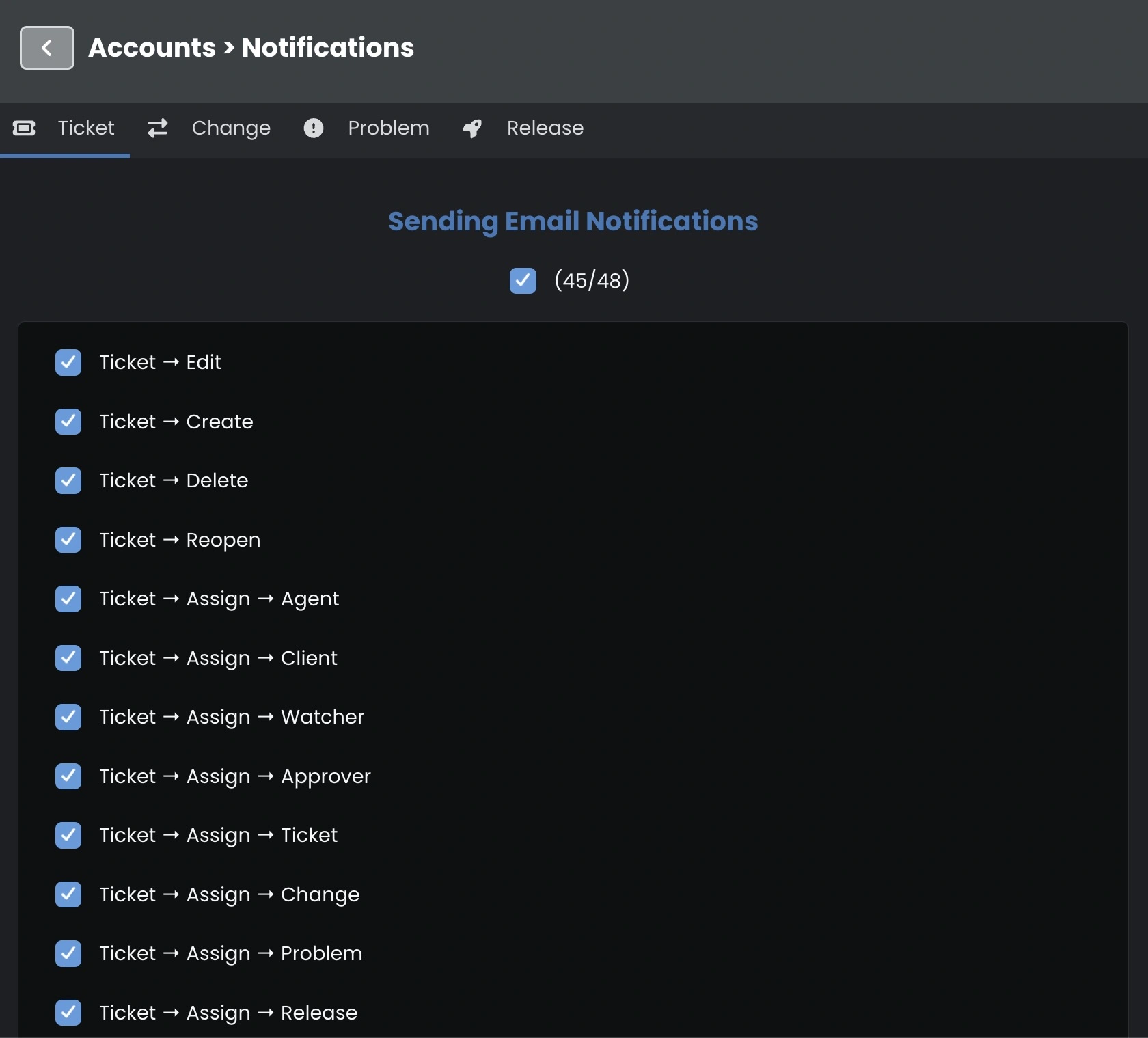
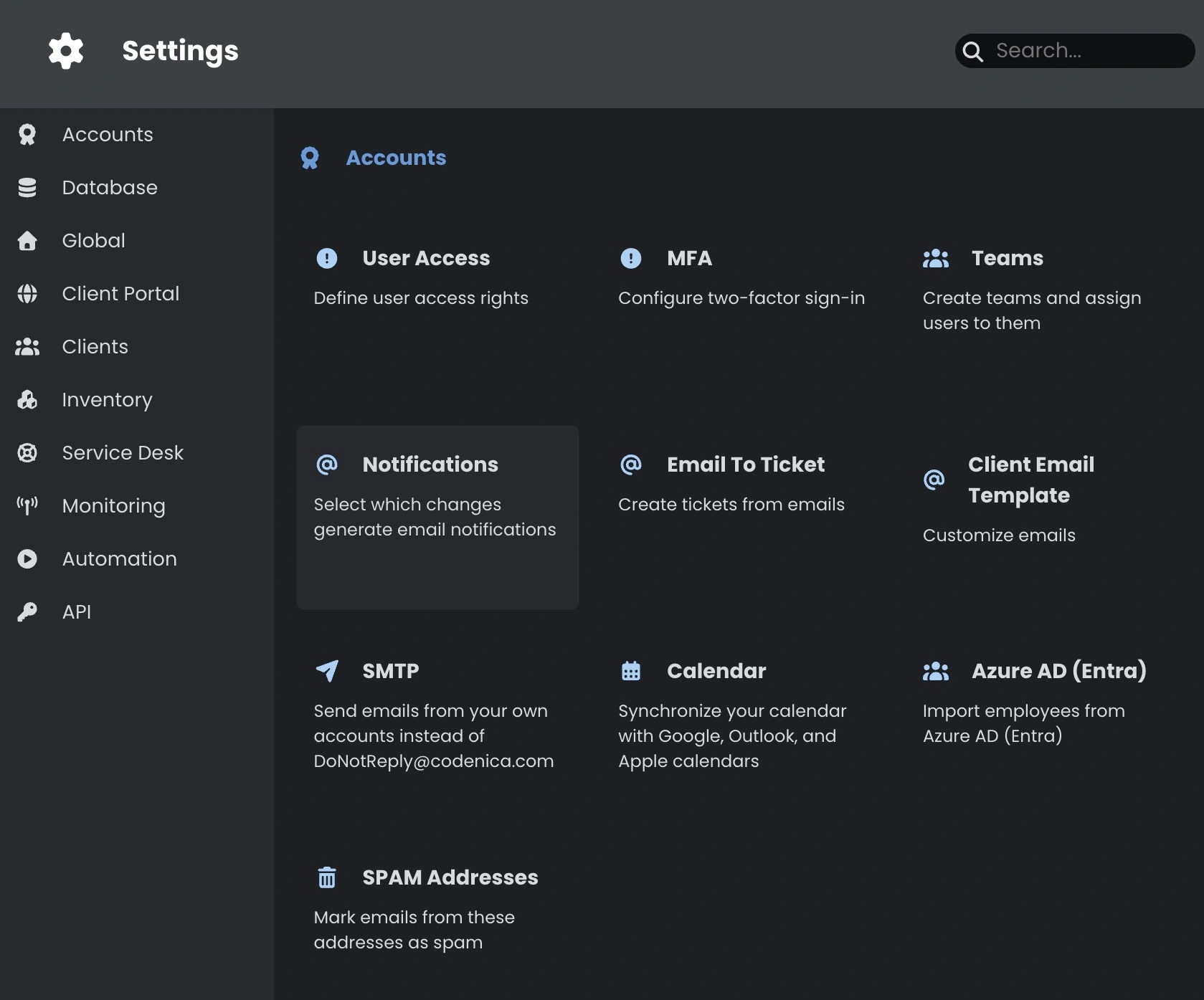
- Open Settings → Accounts → Notifications.
- Select Ticket, Change, Problem, or Release. The tabs depend on the modules available to you.
- Select the events you want to hear about. For example, Ticket → Assign → Agent covers assigning an agent to a ticket.
- Click Save at the top of Settings.
The counter shows how many options are on in the current tab. If any are selected, clicking the checkbox above the list clears them all. Click it again to select all the options in that tab.
Who receives the emails?
Agents, administrators, and watchers
Internal notifications go to the agent assigned to the request. If there is no assigned agent with an email address, Codenica can notify administrators instead. Watchers with an email address are also included. If the assigned agent is also a watcher, their address appears only once in that email.
The event and its recipients are separate. For example, Assign → Approver can trigger a notification when an approver is assigned. The recipients of a standard internal notification are still based on the assigned agent and the watchers.
The client who submitted the ticket
The options under Ticket → Client control a separate email to the requester. Codenica uses the email address on the ticket, even if the client has no portal account. You can configure notifications for ticket creation, a new note or email, agent assignment, and changes to the status, category, or resolution summary.
Codenica usually skips notifications about the client’s own actions. The person who created the ticket can still receive a confirmation. If Codenica is already sending the client a reply about the same event, it skips the extra notification.
Notify a client when the status changes
On the Ticket tab, turn on Client → Edit → Status. The general Ticket → Edit option controls internal emails. Check that the ticket has the client’s email address, save the settings, and change the status on a test ticket.
What to check if an email doesn’t arrive
- Check that you enabled the right event and saved the settings.
- Check the email address on the ticket or the agent’s email address and the watcher list.
- If you use Codenica On-Premise, check outgoing mail under Settings → Accounts → SMTP.
- Check your spam folder. Messages are sent from a queue, so they may take a moment to arrive.
A reply sent to the client from a ticket follows its own delivery process. The notification setting for a new email controls the extra notification.