
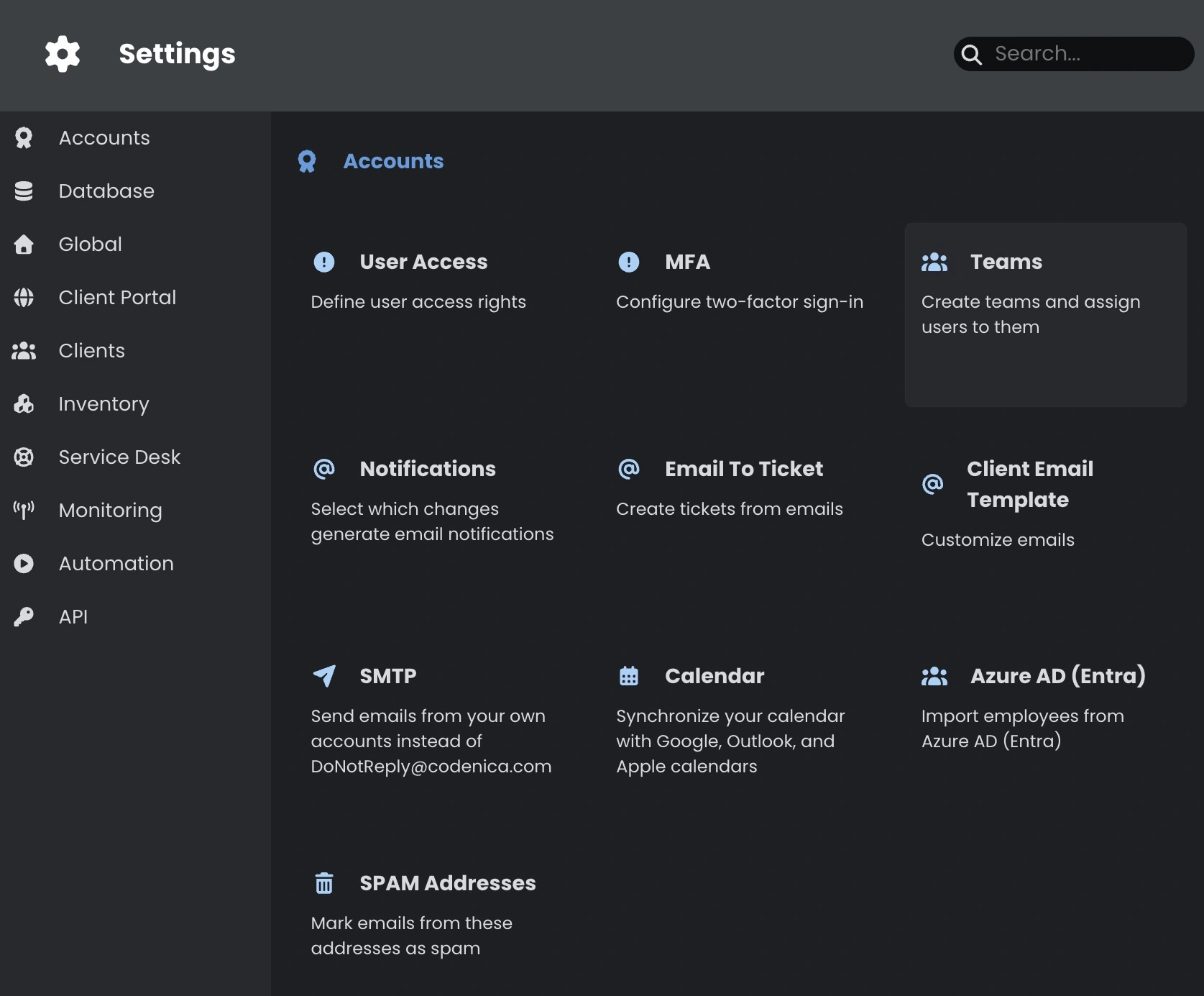
A team is a group of people who handle a particular kind of work. For example, Helpdesk can be the first point of contact, while IT Support handles issues that need technical help. A user can belong to more than one team.
Create a team
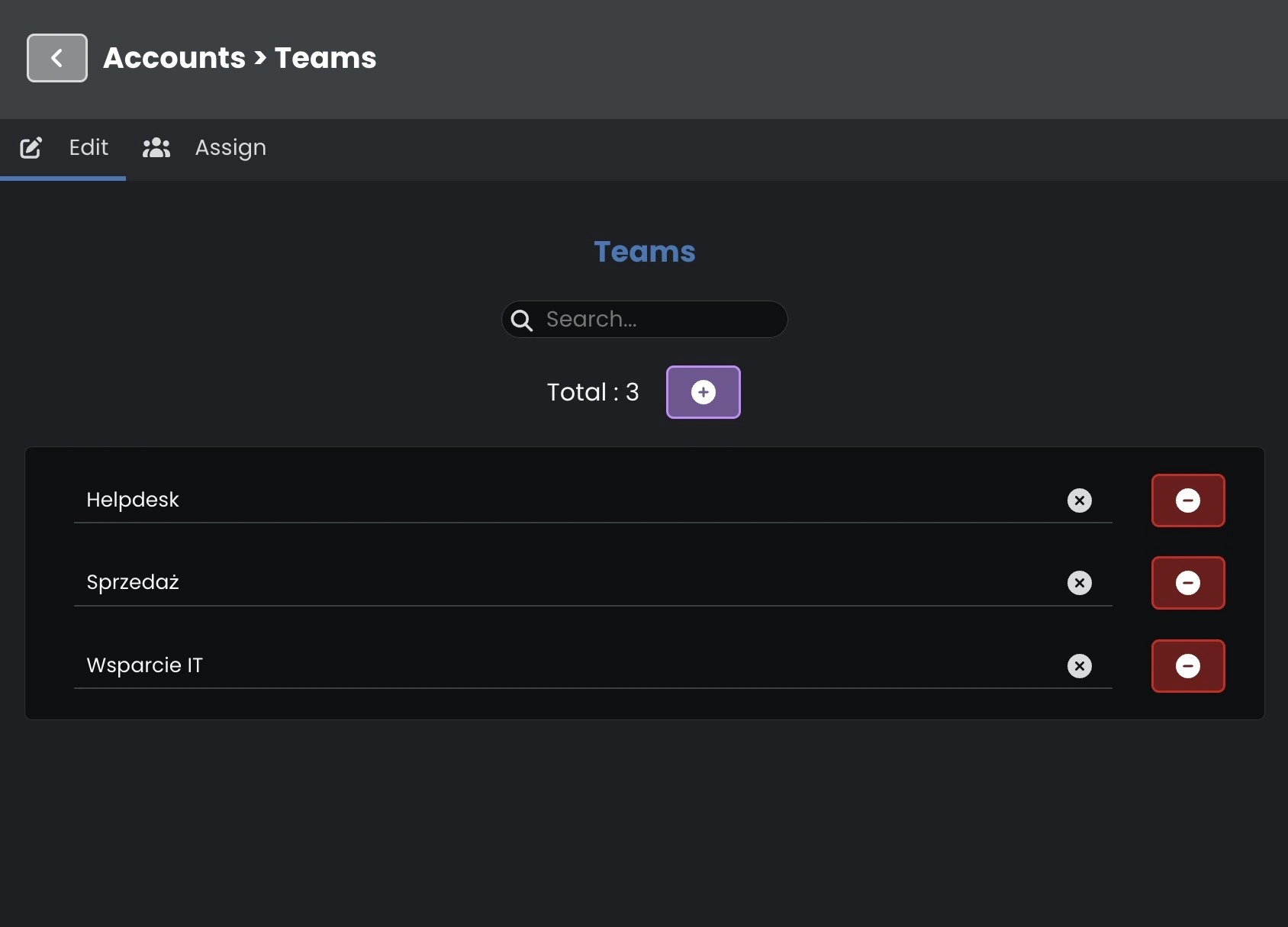
Open Settings → Accounts → Teams. On the Edit tab, click the plus button and enter a name. Pick a name that tells people what the team does, such as IT Support.
Assign a user to a team
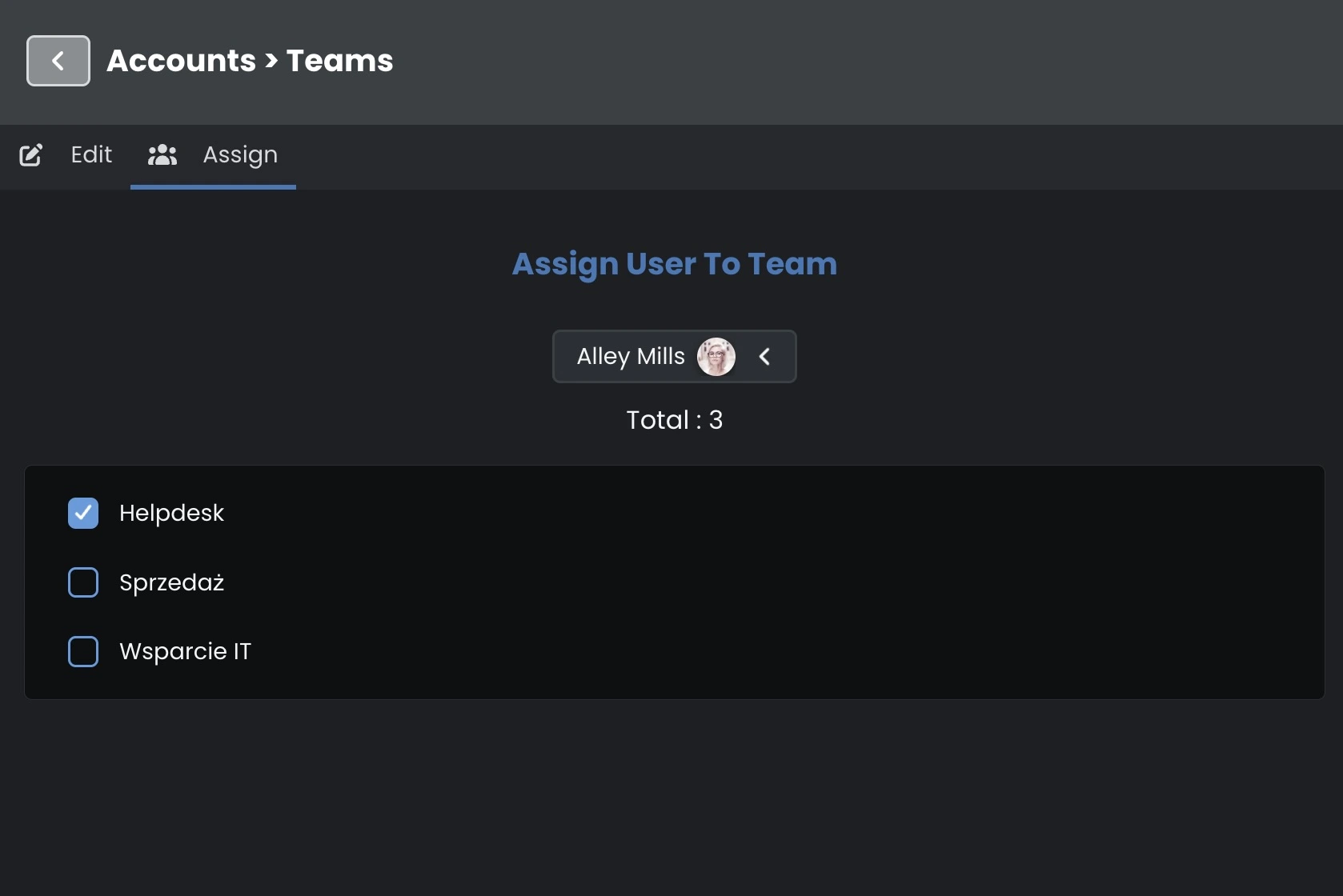
- Open the Assign tab.
- Pick an Administrator or Agent account from the list at the top.
- Select every team the user should belong to. Clear a checkbox to remove the user from that team.
- Click Save at the top of Settings to save your teams and membership changes.
Select one account at a time. To add several people to the same team, select each account in turn and tick the same team.
Use teams to handle requests
Share the workload. Choose a team on a ticket to show who should take care of it. For example, send a printer issue to IT Support. In Service Desk, you can also assign teams to changes, problems, and releases.
Assign work automatically. An automation rule can look for an available person in a particular team. If the rule is set to pick someone from Helpdesk, it considers members of that team.
Control which requests an Agent sees. Go to Settings → Accounts → User Access → Visibility, select the Agent’s RBAC role, and turn on Restricted To Teams. For request handling in Helpdesk or Service Desk, the Agent then sees work assigned to their teams. Other restrictions on the role still apply. For example, a request may also need to match an allowed location.
If an Agent can’t see a ticket, check the team on the ticket and make sure the Agent belongs to it.
Rename or delete a team
On the Edit tab, change the name directly in the list and save. Codenica updates the name in existing assignments, including tickets.
Use the red minus button to delete a team. If it still handles open work, move that work to another team first. When you save, Codenica removes the deleted team from existing assignments.
See also
- Working with Teams in a Ticketing System - see how teams are used in ticket handling.
- How to limit an Agent's visibility to selected locations? - set up visibility by location, department, and team in an RBAC role.