

Keeping Codenica On-Premise up to date should be a regular part of maintaining the installation. This guide covers recurring updates for an installation that is already running on Linux, Windows, or macOS. New versions may be released every day, so update the system regularly, preferably once a week or at least once every two weeks. If Codenica On-Premise is not installed yet, start with the first-installation guide for Codenica On-Premise. Before each update, create a PostgreSQL backup and extract the package outside the active installation directory.
How to Download a New Codenica On-Premise Update
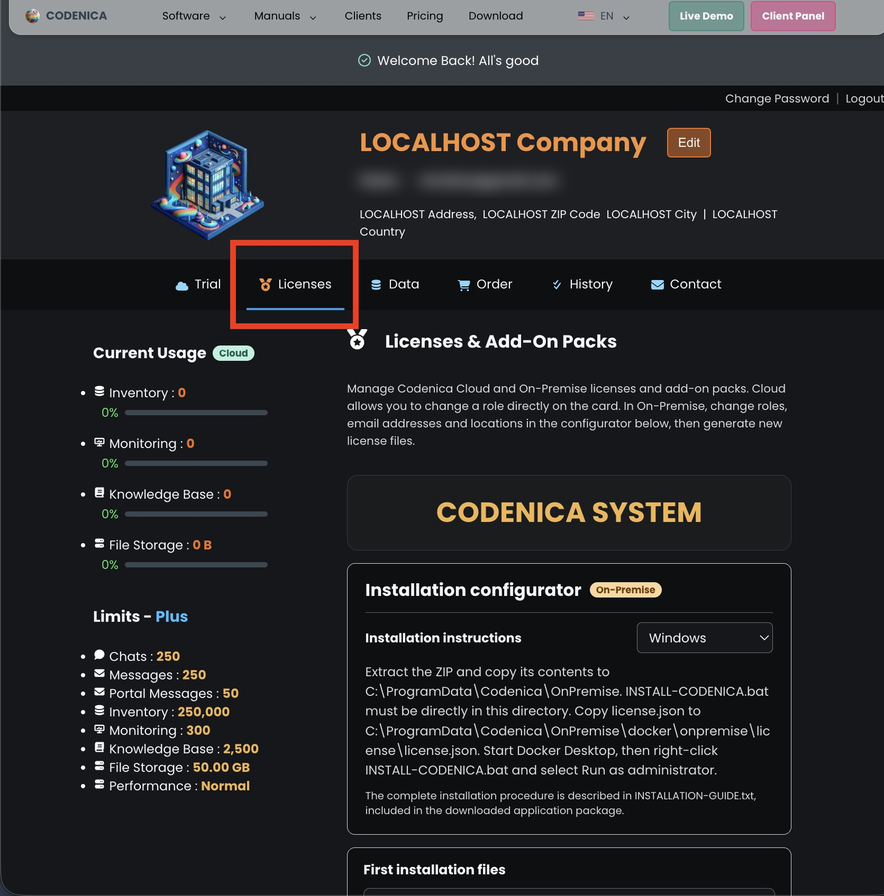
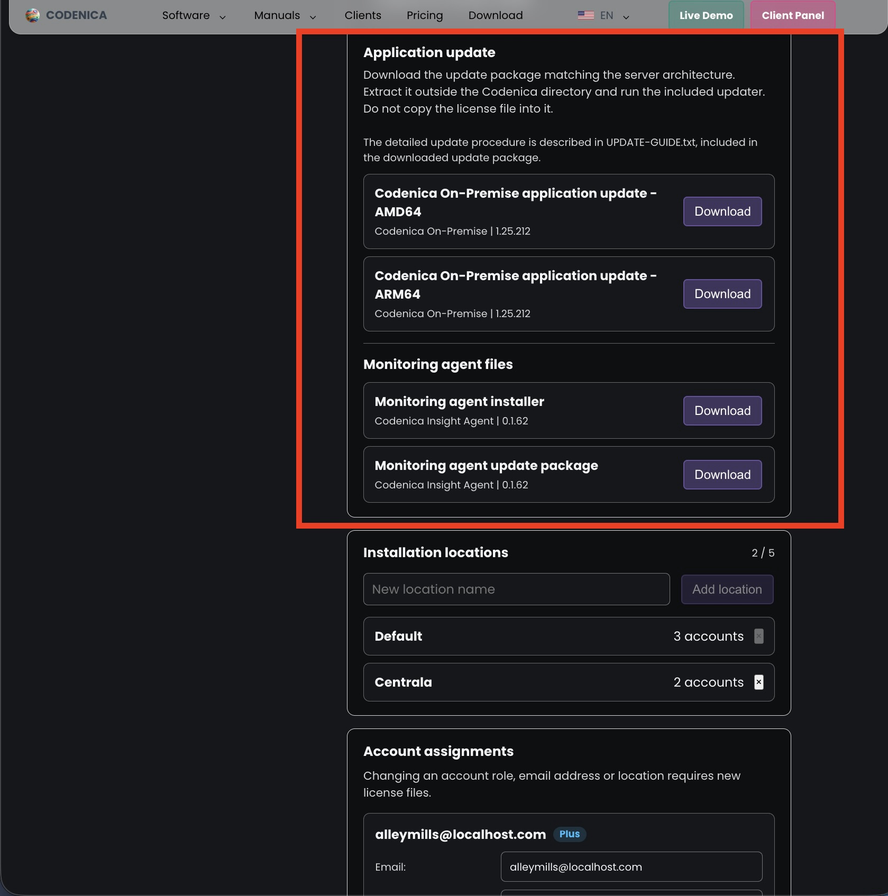
Download the update package from the Codenica Client Portal, under Licenses. An active On-Premise license is required. The ZIP file updates an existing Codenica On-Premise installation. It is not a first-installation package and does not contain a license file.
The update package is prepared for a specific architecture:
- amd64: computers with 64-bit Intel or AMD processors, including Intel Macs;
- arm64: Apple Silicon Macs and other ARM64 computers.
On Linux, x86_64 corresponds to amd64 and aarch64 corresponds to arm64. Choose the package matching the architecture of the computer that runs the Codenica system containers.
Before the Update
- Make sure you have downloaded the correct ZIP package for this installation.
- Create a current PostgreSQL database backup before every update. This is especially important when the system uses an external PostgreSQL server.
- Extract the ZIP outside the existing Codenica system installation directory. Do not extract it inside that directory or replace files manually.
- Do not copy
license.jsoninto the update directory. The existing license, settings, secrets, files, and database remain in the current installation. - Make sure Docker is running.
Update on Windows
- Extract the ZIP outside
C:\ProgramData\Codenica\OnPremise. - Start Docker Desktop and wait until Docker Engine is ready.
- Open the extracted update folder.
- Right-click
UPDATE-CODENICA.batand select Run as administrator. - Wait until the updater confirms that the update completed successfully. Then open the Codenica application at the address configured for the installation.
The updater uses the existing installation in C:\ProgramData\Codenica\OnPremise. You do not need to copy the license again.
Update on macOS
- Extract the ZIP outside
~/Library/Application Support/Codenica/OnPremise. - Start Docker Desktop and wait until Docker Engine is ready.
- Open the extracted update folder.
- Double-click
Update-Codenica.command. If macOS blocks the first launch, Control-click the file, select Open, and confirm the launch. - Wait until the updater confirms that the update completed successfully. Then open the Codenica application at the address configured for the installation.
The updater uses the existing installation in ~/Library/Application Support/Codenica/OnPremise. You do not need to copy the license again.
Update on Linux
- Extract the ZIP outside the existing Codenica system installation directory.
- Start Docker Engine and make sure Docker Compose v2 is installed.
- Open a terminal in the extracted update folder.
- Make the launcher executable:
chmod +x UPDATE-CODENICA-LINUX.sh
./UPDATE-CODENICA-LINUX.sh - Run the updater and provide the path to the existing installation:
IfCODENICA_INSTALL_DIR='/path/to/existing/Codenica' ./UPDATE-CODENICA-LINUX.shCODENICA_INSTALL_DIRis omitted, the launcher asks for the path interactively. Enter the directory containing the existingdocker-compose.ymland.envfiles. - Enter your sudo password if requested. Wait until the updater confirms that the update completed successfully, then open the Codenica system.
What the Updater Changes
The updater:
- loads the new Docker image containing the Codenica API;
- updates the application release configuration;
- recreates only the Codenica application container;
- refreshes the local repository used for offline monitoring-agent updates;
- leaves the PostgreSQL container and its data volume unchanged;
- keeps the existing application address, database connection, and settings;
- stores the previous release files in
update-backups/previous-release.
Installed monitoring agents do not need to be reinstalled. After the local repository is refreshed, each agent downloads the new version during its normal update check.
What the Updater Does Not Change
The updater does not replace or delete:
license.json;- PostgreSQL data or the PostgreSQL volume;
- database connection settings;
- the application address or the agent address;
- generated secrets and certificates;
- application files or file storage;
- backups, logs, or Data Protection data;
- the existing installation directory.
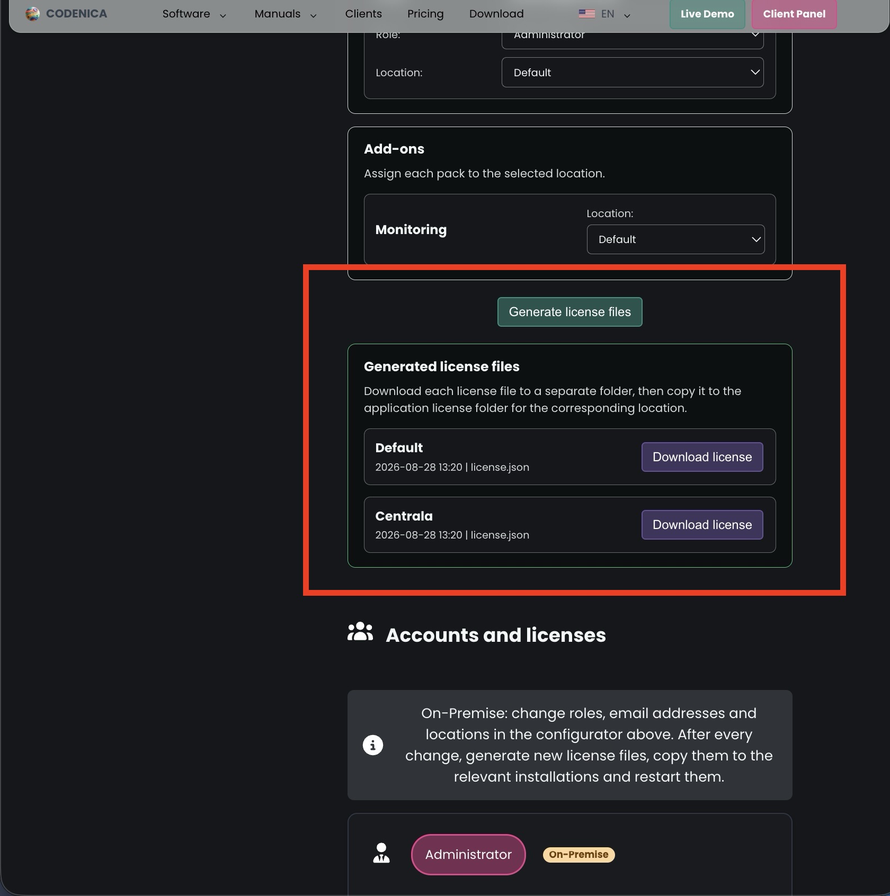
If you need to change the license configuration, generate a new license in the Client Portal, copy it into the existing installation, and restart the application. You do not need to download a new application update package for this.
What to Do If the Update Fails
If the new system version does not start correctly, the updater attempts to restore the previous application image and release files, then attempts to restart the application container.
The updater cannot automatically undo a database migration that has already been applied. If the new version changed the database schema, restore the PostgreSQL backup before permanently returning to an older version.
Update logs are stored here:
- Windows:
C:\ProgramData\Codenica\Logs\update.log; - Linux:
update.login the extracted update directory; - macOS:
update.login the extracted update directory.