
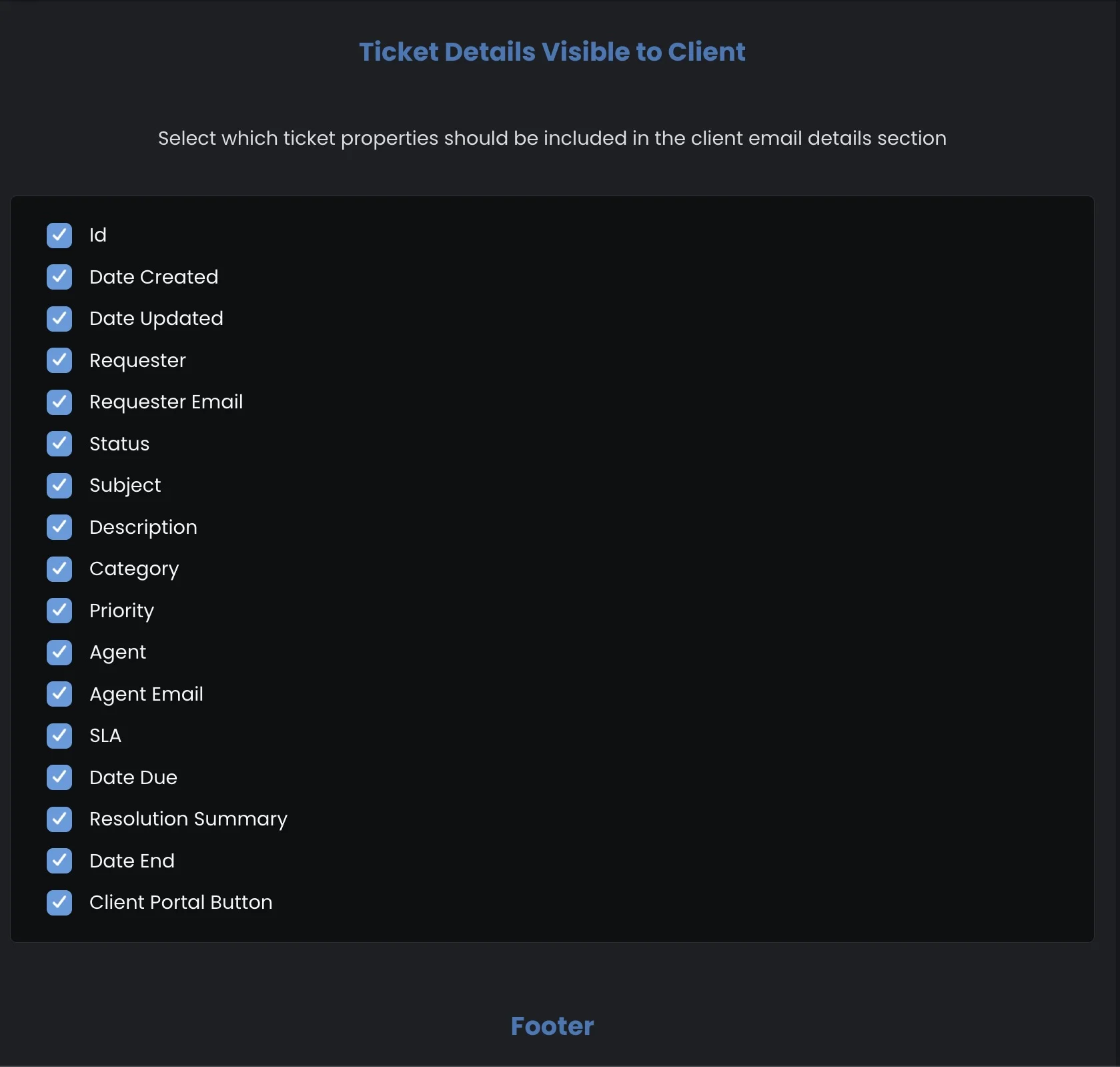
The template controls how Codenica emails people who submit tickets. Your organization shares one template.
How do I customize the message?
- Open Settings → Accounts → Client Email Template → Appearance. You need a Helpdesk or Service Desk license and permission to edit account settings.
- In Header, add your support team’s name or a short heading. Use the editor to format it.
- Use Texts Under Header to write messages for ticket creation, updates, closure and receipt of a reply. For example, thank the requester and say what happens next.
- Choose the details to show, add a footer and click Save.
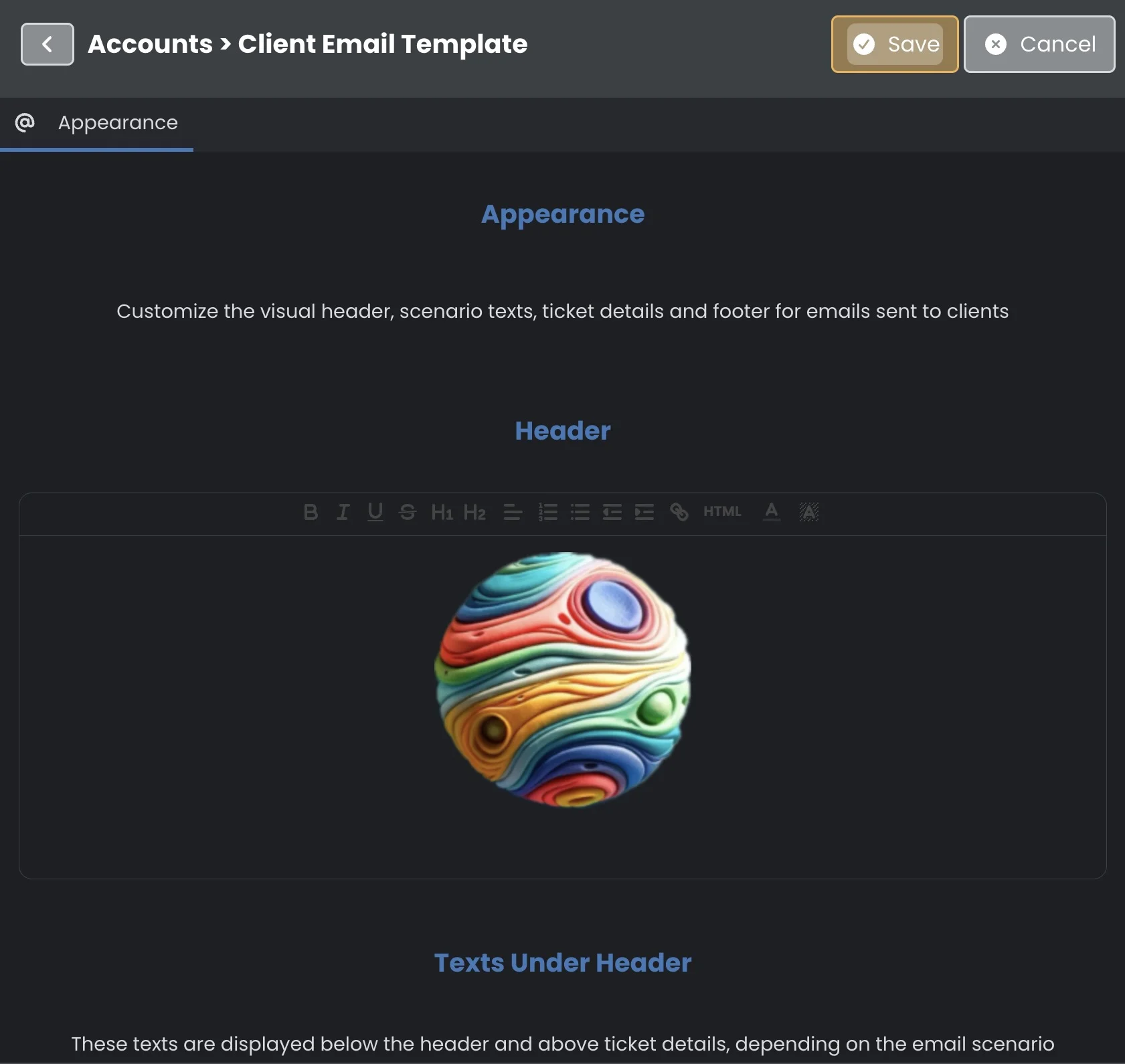
Which details will the requester see?
Under Ticket Details Visible to Client, choose the rows for the email. Keep ID, Status and Subject, for example, and clear Agent Email if customers should use your shared support address. A row appears when there is a value to show. Subject controls the row in the email. If the table is empty, Codenica may include the standard notification text.
Enable Client Portal Button to add a shortcut to the ticket list in the portal.
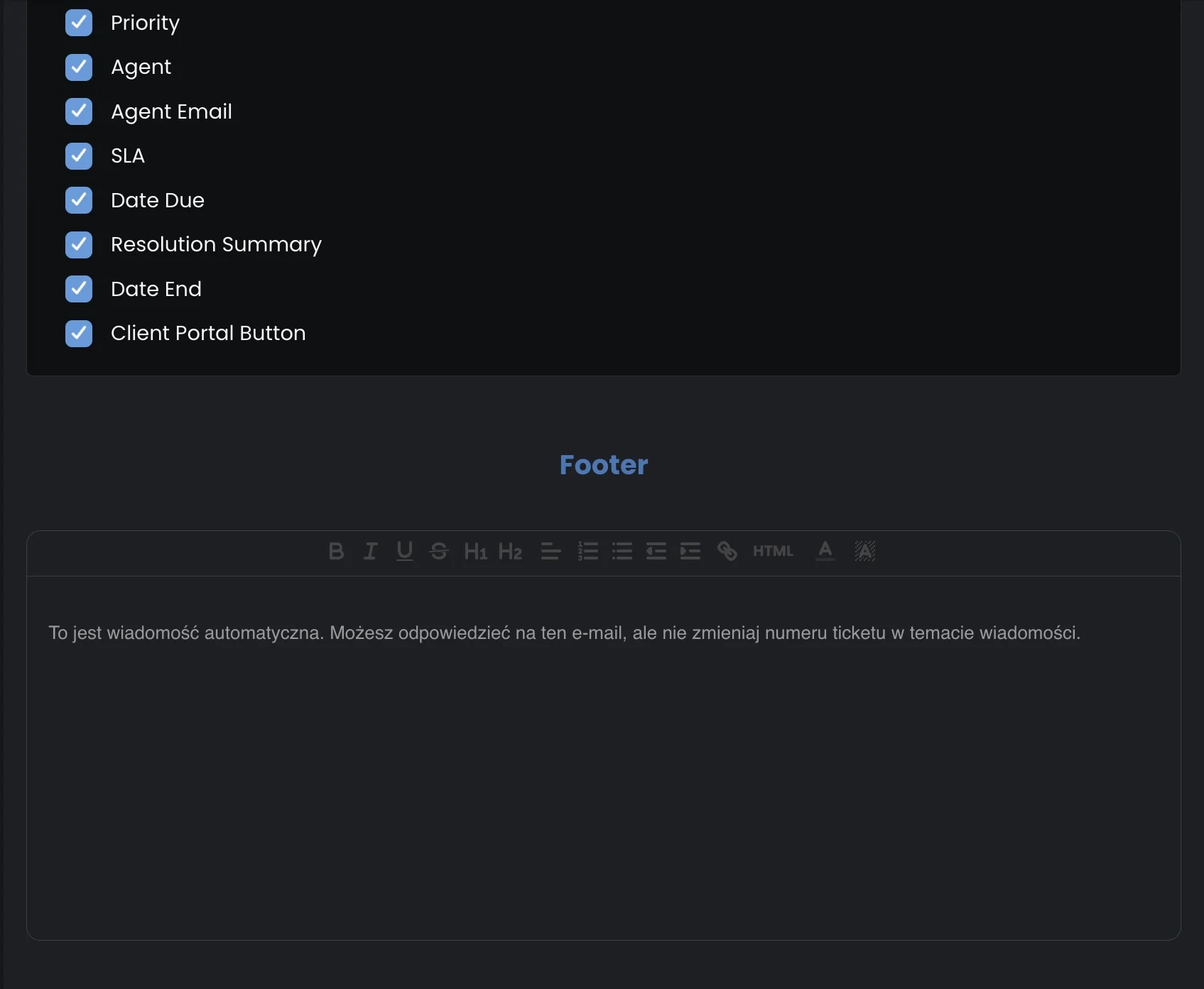
What should go in the footer?
Add the team name, support hours or contact details. Give readers directions that match how you handle replies.
When does Codenica use the template?
Automatic ticket emails use the template when the corresponding event is enabled in Settings → Accounts → Notifications. If an email from the requester is added to an open ticket, Codenica confirms receipt when Ticket → Client → Add → Email is enabled. It uses Reply Added Text, or a short message in the recipient’s language if that field is empty.
For a reply sent by an Agent from a ticket, Codenica checks the address in To. If it matches the requester, the reply uses the template header and footer. People copied in Cc or Bcc receive the same message.
Save your changes and create a test ticket with an address you can check. Review the notification and send a reply by email with the ticket number in the subject to test the confirmation. You can also send an Agent reply from the ticket to check the header and footer.