

In this article, Agent means an application user without Administrator permissions, in other words, an account with the system Agent role. Client and Viewer are separate account types.
The RBAC role assigned to an Agent determines which features they can use and which data they can see.
For an overview of the roles and permissions model, read User Permissions and Roles (RBAC).
Why create a custom RBAC role?
The built-in Administrator and Agent roles cannot be edited. To configure an Agent's permissions and visibility, create at least one new custom RBAC role and assign it to the Agent's account.
An RBAC role defines feature access and visibility scopes. If you assign the same RBAC role to several Agents, they share its permissions, locations, departments, categories, and client portal availability setting. Team membership is assigned separately for each Agent account.
Before you begin
Make sure the locations, departments, and teams you need are already set up in system settings. Also check that records the Agent should see have the correct locations, departments, teams, and categories. The RBAC scope filters data using these values.
1. Create an RBAC role
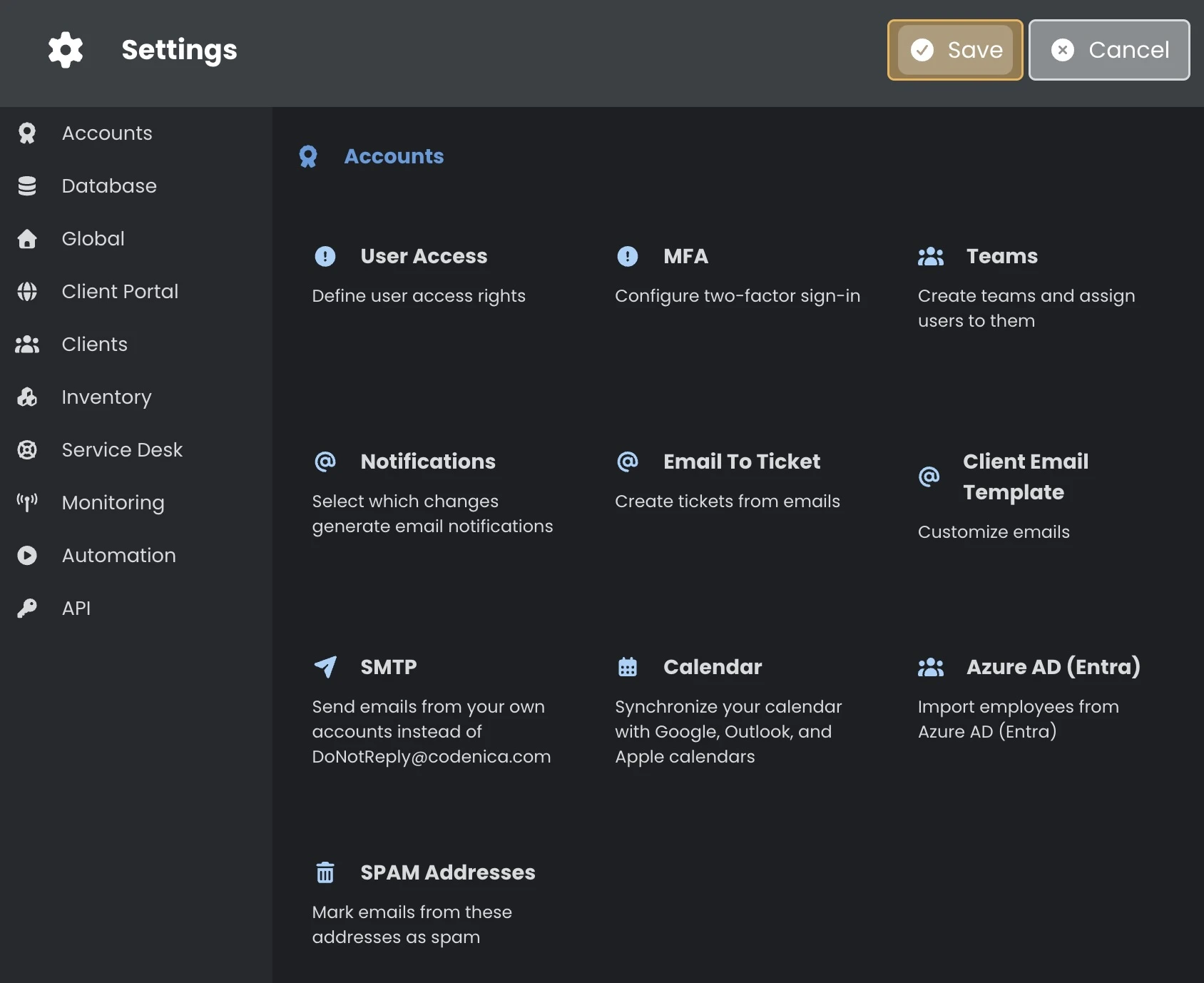
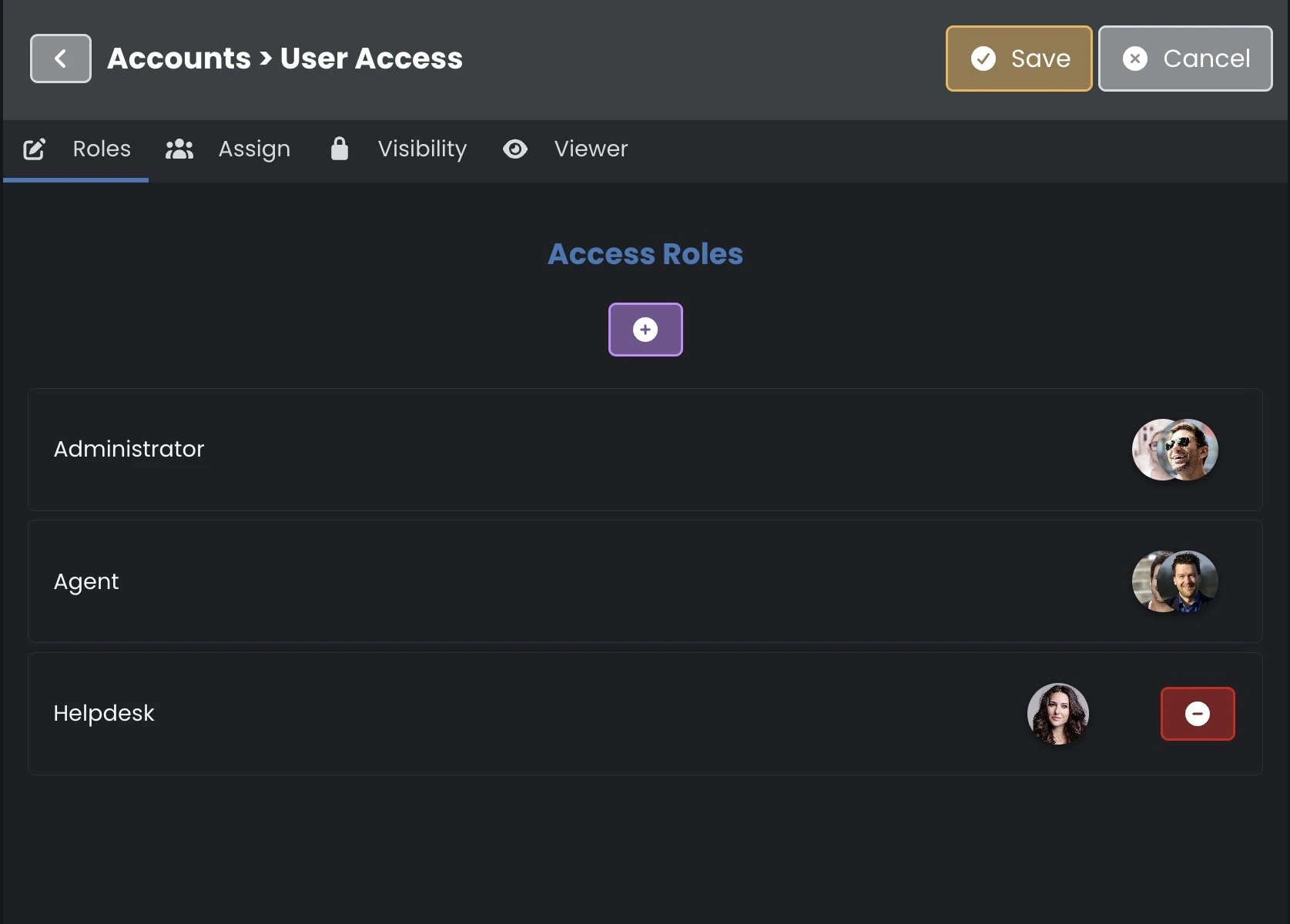
Go to Settings > Accounts > User Access. Under Roles, add a role using the plus button. Give it a name and select the permissions the Agent needs.
If Agents need different permissions or visibility scopes, create separate RBAC roles for those profiles.
2. Assign the RBAC role to the Agent
Under Assign, select the account with the system Agent role, then assign the RBAC role you created. The assigned role's settings define this account's permissions and visibility scope.
3. Limit visibility by location
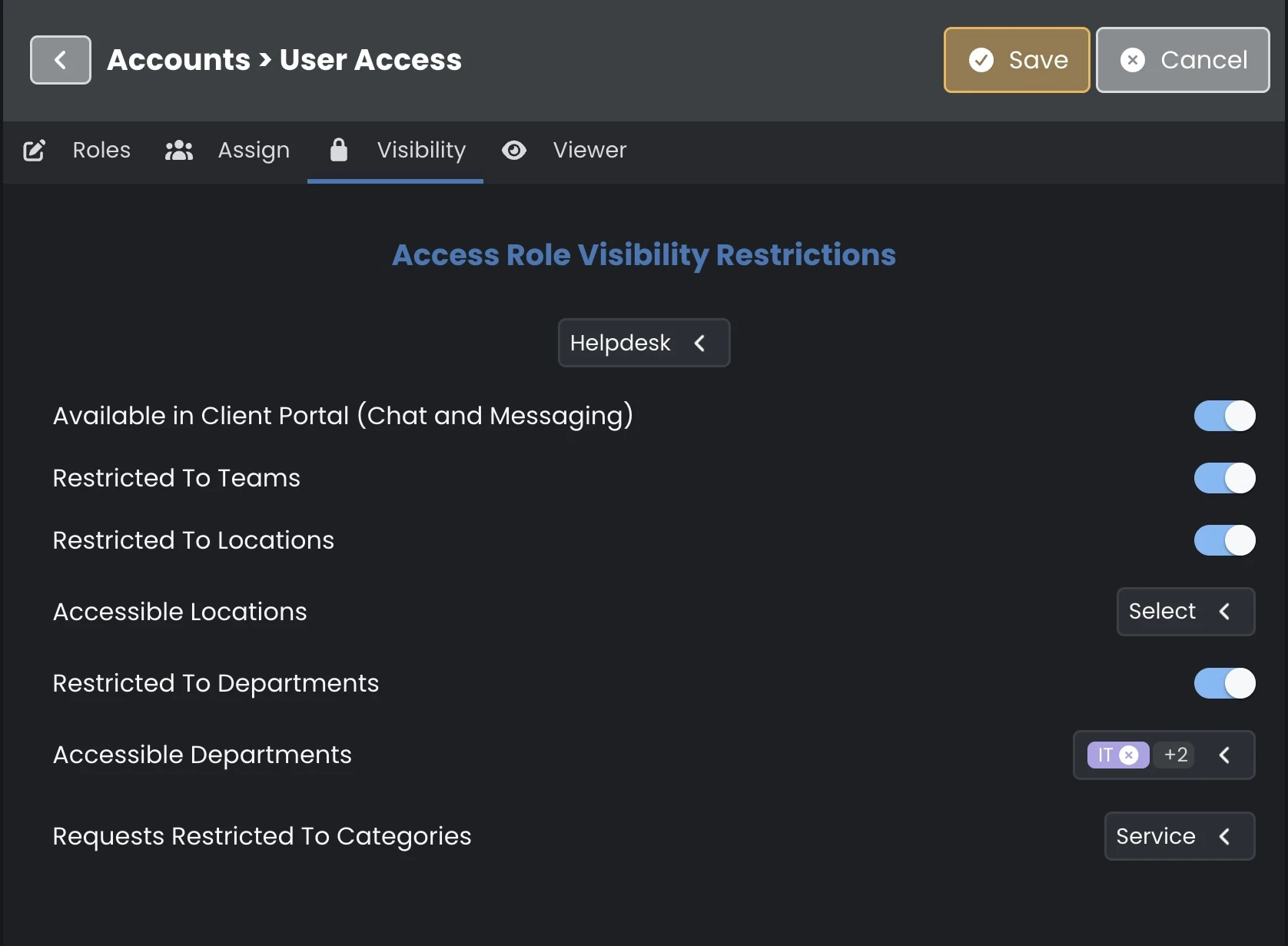
Open Visibility and select the RBAC role you want to configure. Turn on Restricted To Locations, then select the locations the Agent should work with under Accessible Locations.
When you select several locations, the Agent can see records from any of them. To limit the RBAC role to one location, select only that location. All includes every location.
You can also turn on Restricted To Departments and select the permitted departments. When both restrictions are active, a record must match a permitted location and a permitted department.
Other visibility settings
The same Visibility page contains the team and category scopes, as well as the Agent's availability in the client portal.
Team and category filters apply to request handling in Helpdesk or Service Desk.
Restricted To Teams
When Restricted To Teams is on, the Agent sees records assigned to teams they belong to. The RBAC role determines whether the team filter applies, while team membership is set on each Agent account.
Assign teams under Settings > Accounts > Teams > Assign. Select the Agent's account and choose their teams. Records intended for the Agent should be assigned to one of those teams. Assign the Agent to at least one team to give them access to records within the team scope.
Requests Restricted To Categories
Under Requests Restricted To Categories, select the categories the Agent can work with. The list includes categories configured for tickets, changes, problems, and releases. The Agent sees records from the selected categories in areas of the app that support this filter.
You can select several categories. An empty list means the RBAC role does not limit visibility by category. When location or team restrictions are also active, a record must match every applicable RBAC scope.
Available in Client Portal (Chat and Messaging)
This option controls whether Agents with the RBAC role are shown to clients as available contacts in portal chat and messaging.
What will the Agent see?
In areas of the app that support visibility restrictions, the Agent sees records within the scope of their RBAC role. If you select several values for one restriction, records matching any selected value can be shown. Different active restrictions apply together. For example, a record must match a permitted location and at least one of the Agent's teams.
Select at least one permitted value for every restriction you turn on. The team scope uses the teams assigned to the Agent's account.
What happens when the Agent creates a record?
If the Agent creates a record and leaves the location or department field out, the app fills it in. For a field covered by an RBAC restriction, it uses the values allowed by the role. For an unrestricted field, it uses the values from the Agent's profile.
If the RBAC role allows several locations or departments, the new record receives all of them. To assign just one location or department by default, allow one value in the relevant RBAC scope. Defaults apply to fields left out of the form. Before saving, each field covered by an active restriction should contain an allowed value.
Save and check the settings
After configuring the RBAC role, click Save at the top of system settings. In the role permissions editor, Confirm accepts your selection and returns to the role list. Use Save to save the system settings changes.
Check the visibility on an Agent account assigned to this RBAC role. Compare the records shown with the selected locations, departments, teams, and categories. If the results differ, review the RBAC scope, the Agent's team membership, and the values on the records.