
If you want ticket replies to come from your company’s support address, add an SMTP account. You can use one account for all outgoing mail or choose different senders for replies, notifications, reports and automations.
Codenica Cloud can send from DoNotReply ( @ ) codenica.com without a custom account. Codenica On-Premise needs its own outgoing mail configuration. If your Codenica server has no internet access, use an SMTP server it can reach on your network. OAuth2 requires a connection to your mail provider.
How do I add an SMTP account?
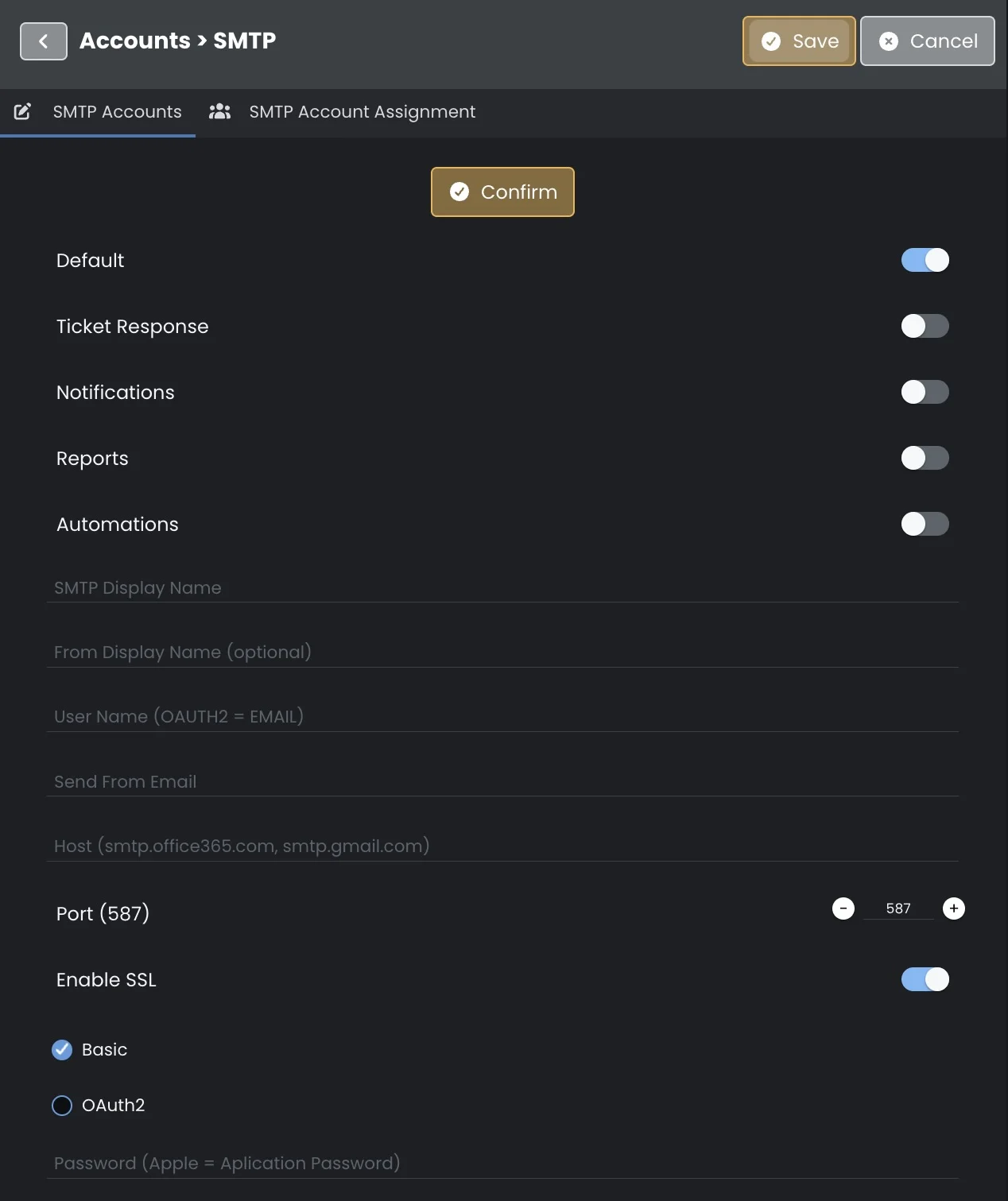
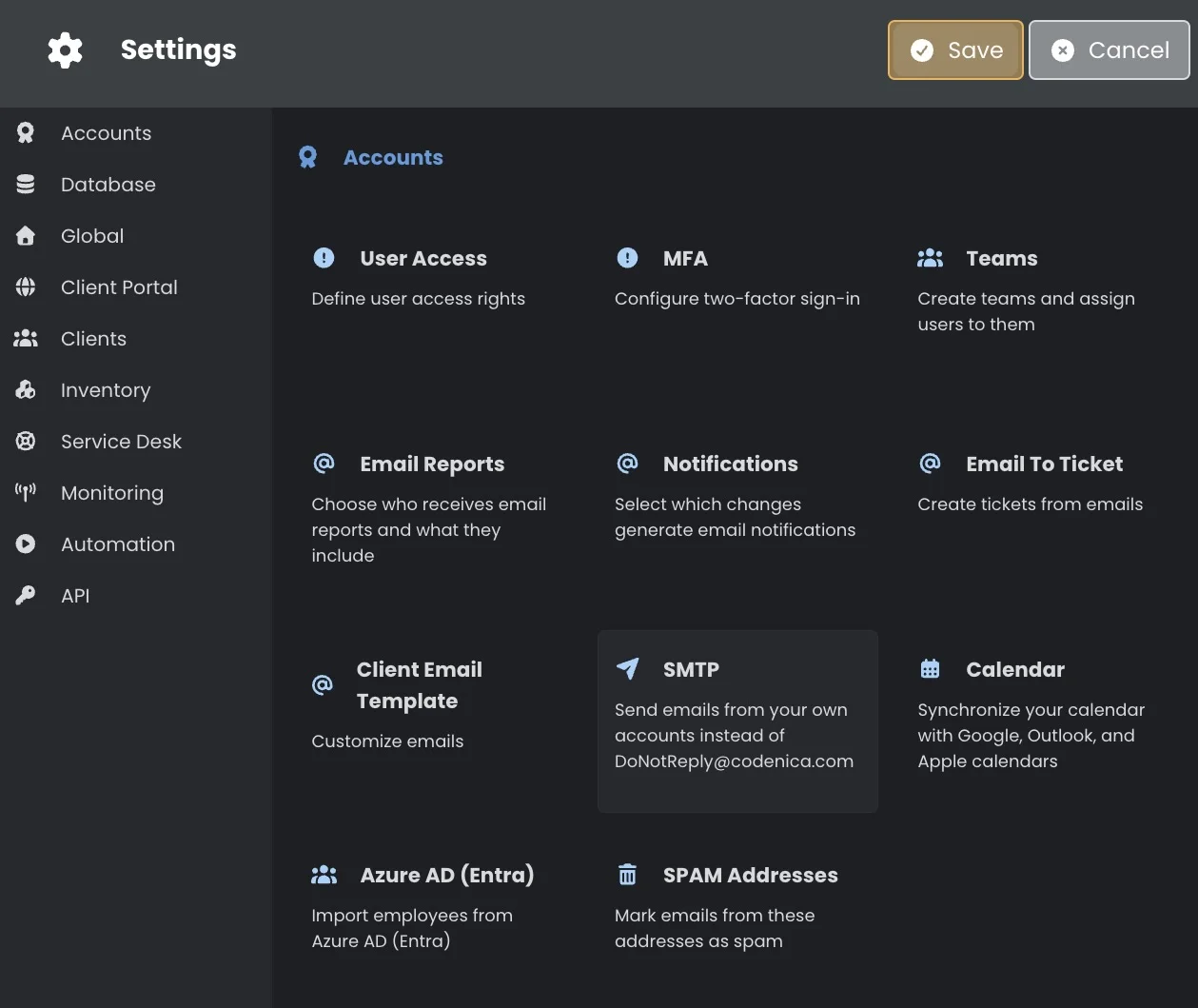
- Go to Settings → Accounts → SMTP. On the SMTP Accounts tab, click +.
- Give the account a name you can recognize in settings. Enter the sender’s address in Send From Email. You can also enter a name that recipients will see, such as “Support Team”.
- Enter the user name, host and port for your mail server. Turn on Enable SSL to encrypt the connection. Port 465 uses TLS from the start. Port 587 uses STARTTLS.
- Choose how to sign in. For Basic, enter the mailbox password or an app password if required. For OAuth2, select an available provider, click Connect with your account, and complete sign-in. Your saved password remains active until OAuth2 is connected successfully. Enter a password when switching back to Basic.
- Choose which messages this account should send. Click Confirm, then Save at the top of Settings.
How does Codenica choose the sender?
- Ticket Response covers replies Agents send from a ticket and automatic emails sent to the requester. Manual replies try the Agent’s assigned account first. Automatic emails to the requester use the organization’s account settings.
- Notifications covers messages such as internal updates about tickets. Choose the events that trigger them in Email notifications.
- Reports selects the sender for automatic summaries. Configure recipients and content in Email reports.
- Automations covers email sent by automation rules.
- Default provides a fallback when there is no usable account for the message type. If you have one working account, Codenica can also use it without a separate assignment for the message type.
An account can have several purposes. For example, your support mailbox can handle both ticket replies and notifications.
How do I assign an account to an Agent?
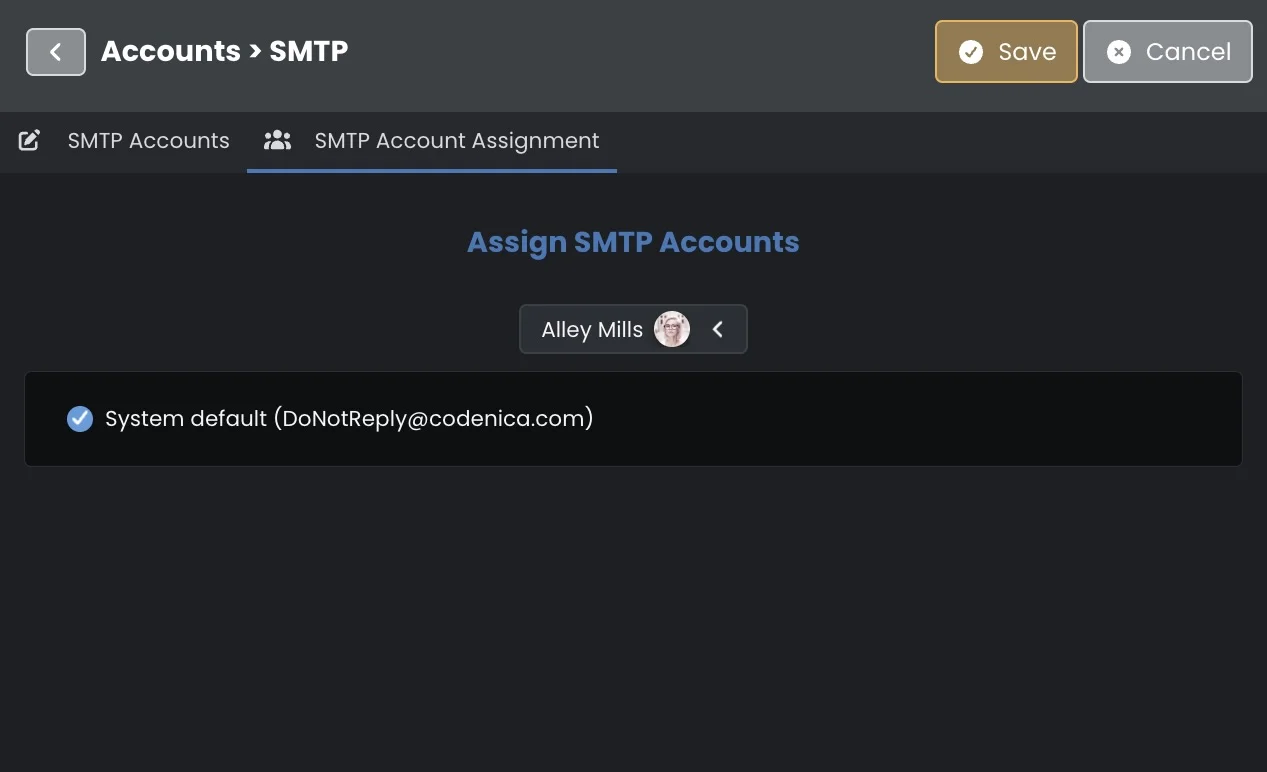
Open SMTP Account Assignment, select the user and account, then click Save. Choose No SMTP account assigned to let Codenica use the organization’s account selection rules for the Agent’s replies.
How do I check that email is being sent?
Send a manual reply from a test ticket to an address you can check. Look at the sender’s address in the delivered message. If you set up a separate account for notifications, trigger an enabled event and check who sent that email as well.
If the email does not arrive, check the recipient’s address, spam folder, mail server, port and sign-in method. On-Premise users should also check that the Codenica server can connect to the SMTP server. If the sender is unexpected, check the Agent’s assignment and the accounts marked Ticket Response or Default.