
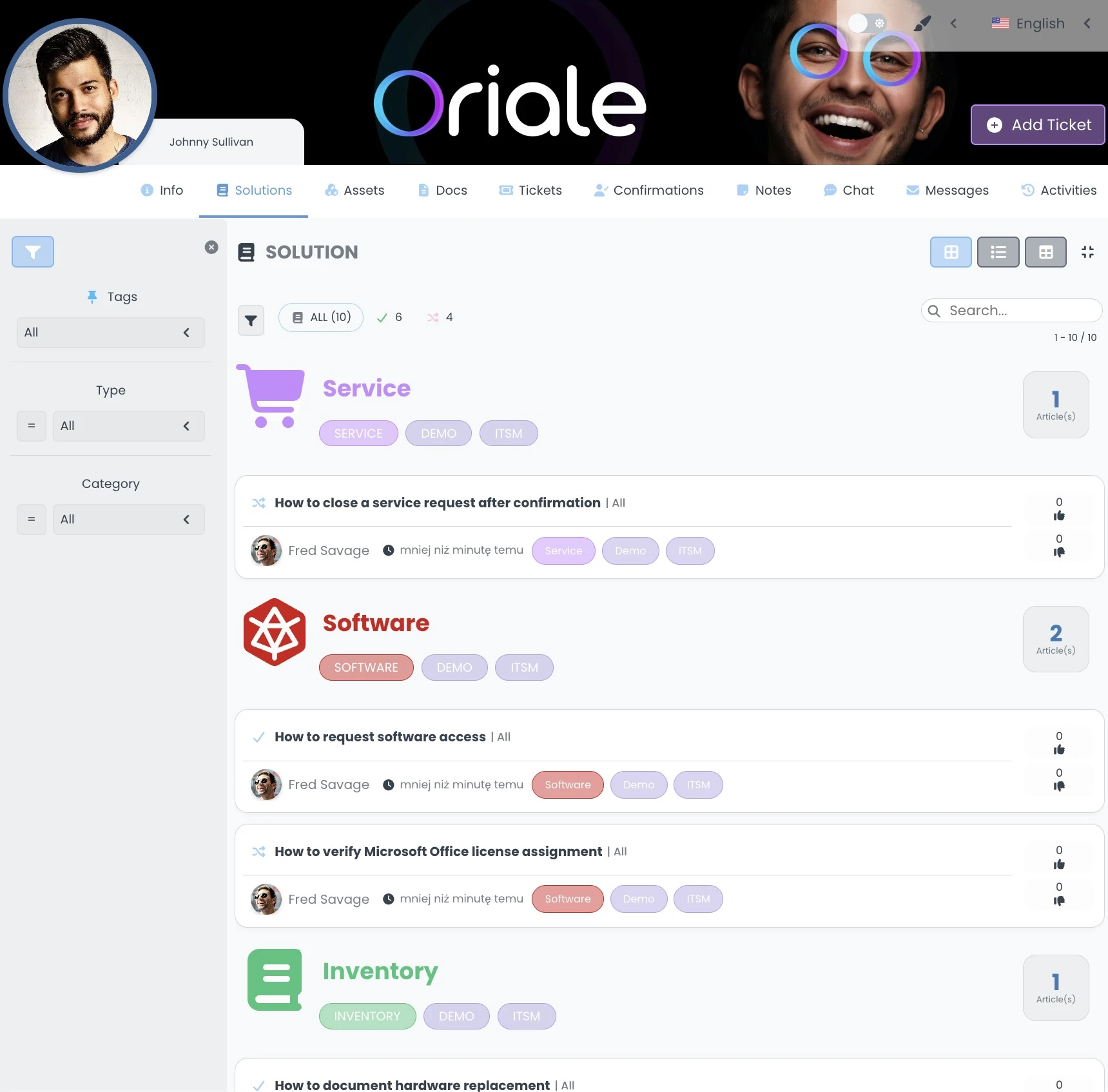
Go to Settings → Client Portal → Access to choose which tabs clients can see and what they can do. These permissions apply to everyone who signs in to your organisation’s Client Portal. A change affects the whole portal for that organisation.
The shared permissions define the available features. The records in each tab still depend on what is available to the person who signed in. For example, when the Tickets tab is enabled, clients see the same tab, and each sees the tickets for which they are the requester.
What controls tab visibility?
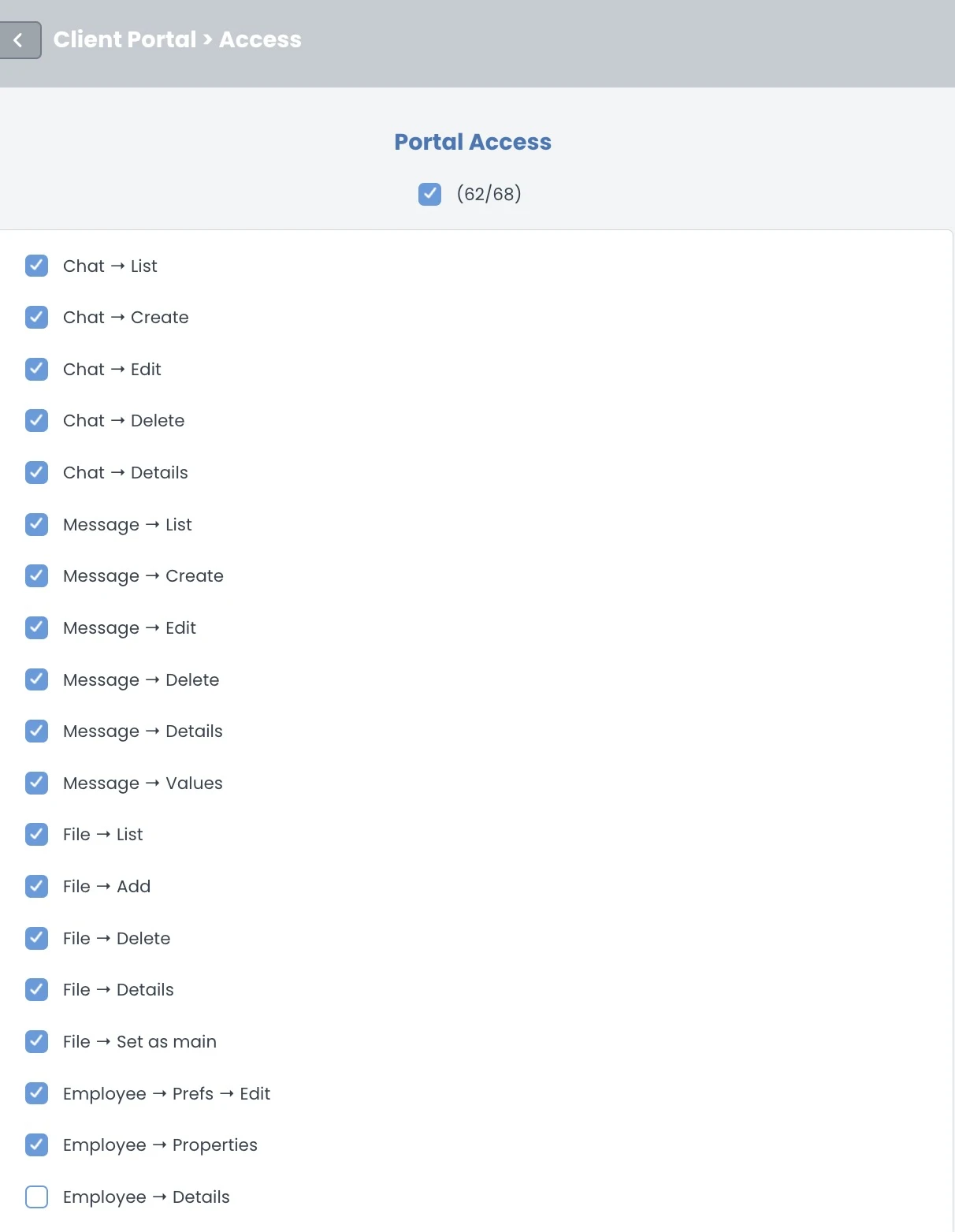
Permissions are listed by record type and action, such as Chat → List. The relevant List permission controls visibility for Solutions, Assets, Docs, Tickets, Confirmations, Notes, Chat and Messages. The client’s activity permission controls the Activities tab. Info appears when the client can view profile properties, edit the profile or edit preferences.
What can clients do within a tab?
List access and individual actions have separate permissions. For example, keep Message → List enabled and turn off Message → Delete. Clients can still open the messages list. Opening message details is controlled separately.
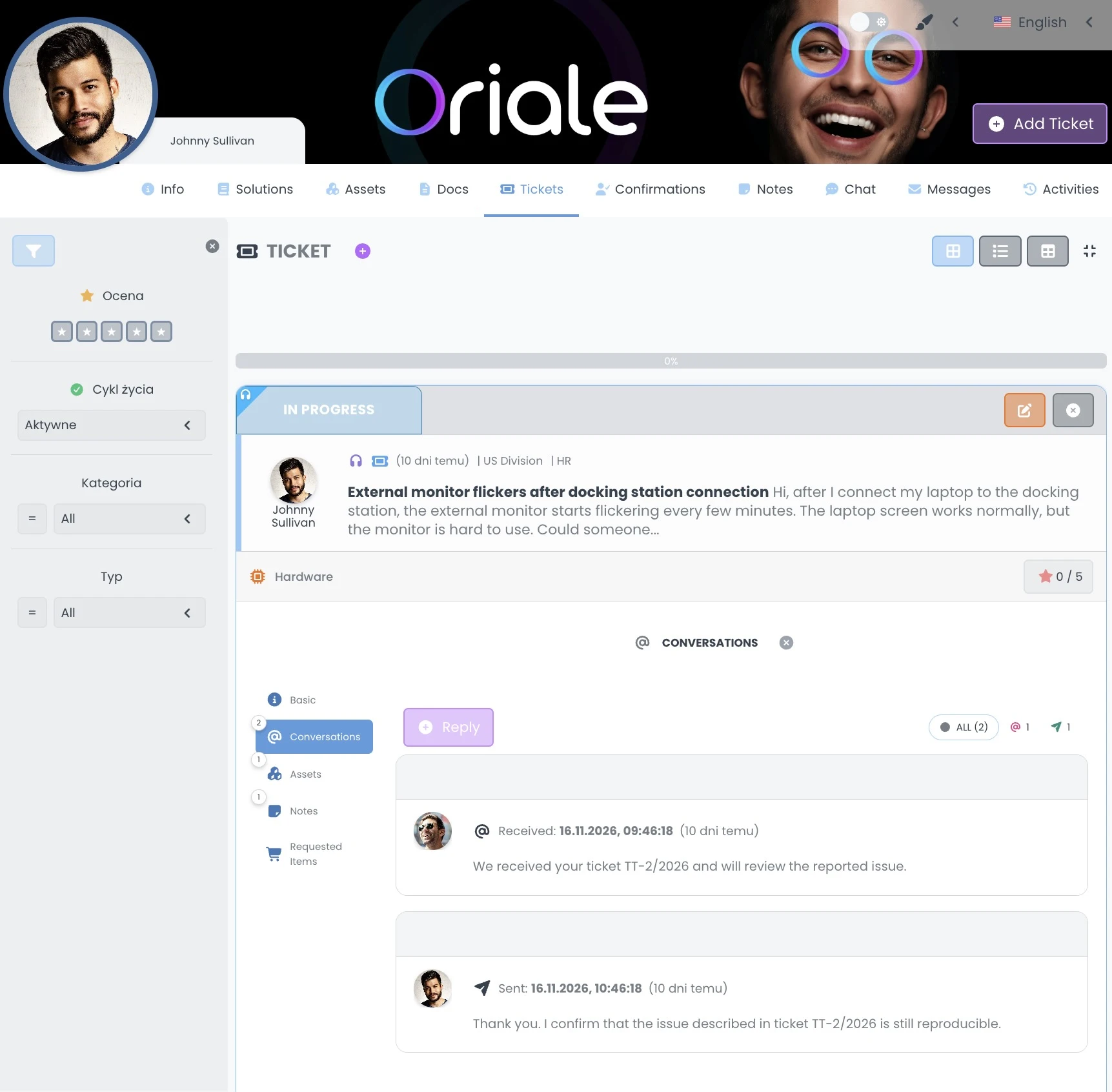
Ticket → Create controls the Add Ticket button. You can keep the button available while hiding the Tickets tab if you want clients to submit new requests without seeing the list. When you share ticket history, you can also configure access to conversations and replies within a ticket.
Change permissions and check the client view
- Open Settings → Client Portal → Access and select the permissions you want to grant.
- Save your changes.
- Sign in to the portal again with a client account. Check the tabs and the actions available when you open a record.