
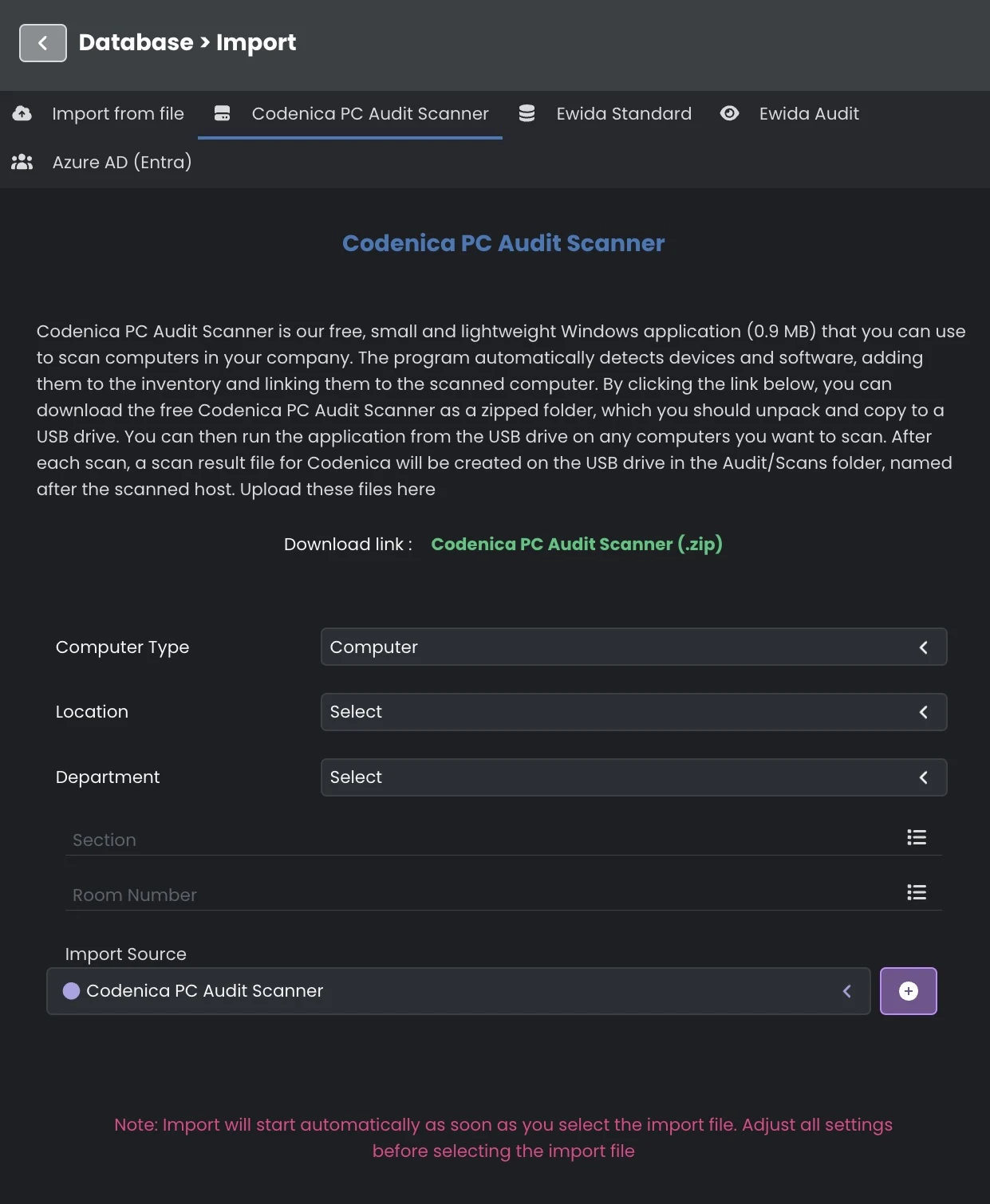
Import a Windows scan to see the computer, its hardware and software in Codenica inventory.
Get a scan result
As an administrator, open Settings → Database → Import → Codenica PC Audit Scanner. Download and extract the ZIP. You can run the scanner from the extracted folder on a USB drive. Find the host’s result in Audit/Scans.
Import and verify
Choose the computer type and source. Set the location, department, section and room number as needed. Selecting the result file starts the import. Check the summary and linked hardware and software. For repeated scans, use the same computer type. Codenica matches by host name and applies location and department filters if provided. If those settings change, check whether the import updated or added the record.