
For a customer-facing portal, you may want users to create their own accounts. On an internal help desk, someone on your team may handle access instead. In Codenica, this choice applies to the entire organization.
Open Settings → Employees → Client Mode. If Client Mode is already active, look under Clients.
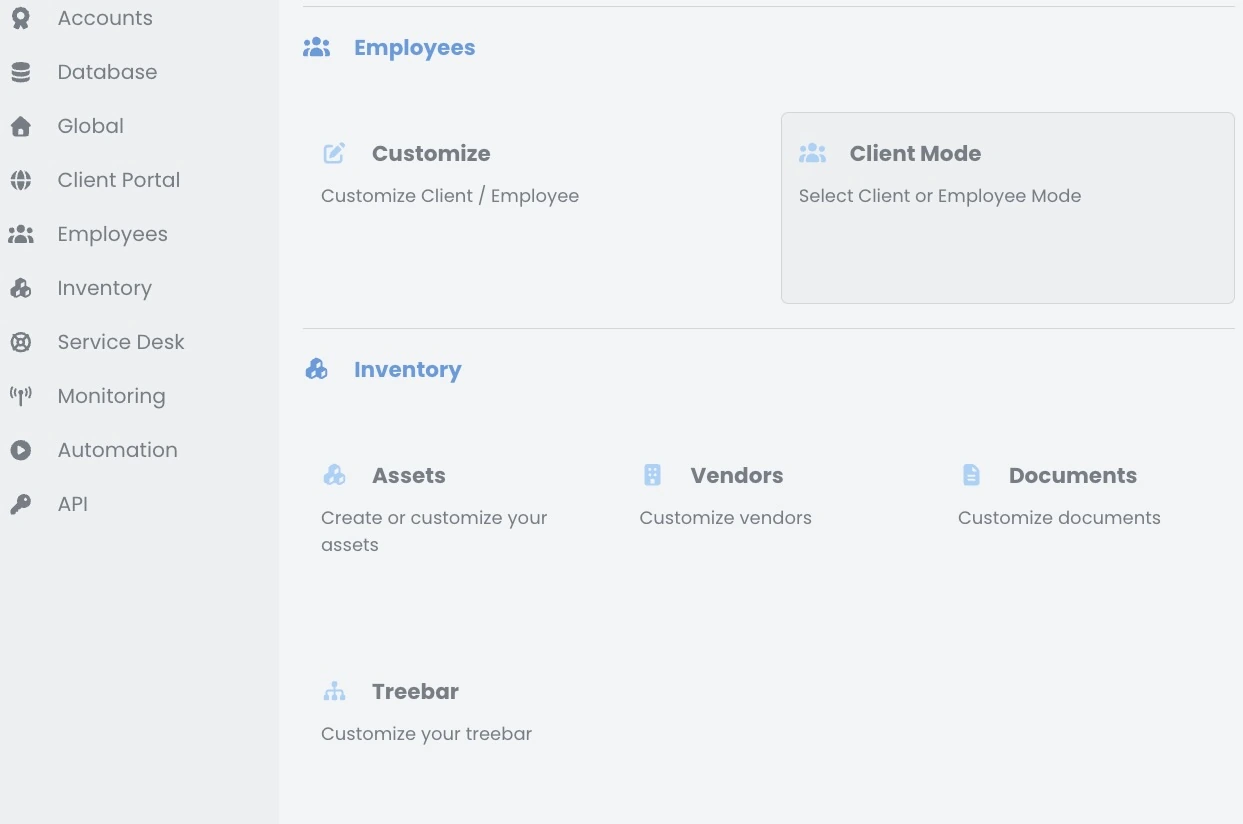
Client Mode
Users can create an account from the Client Portal sign-in screen. Choose this mode if the people you support should register themselves. The application calls these records Clients. Portal users can update the fields on their own profile that are available for editing.
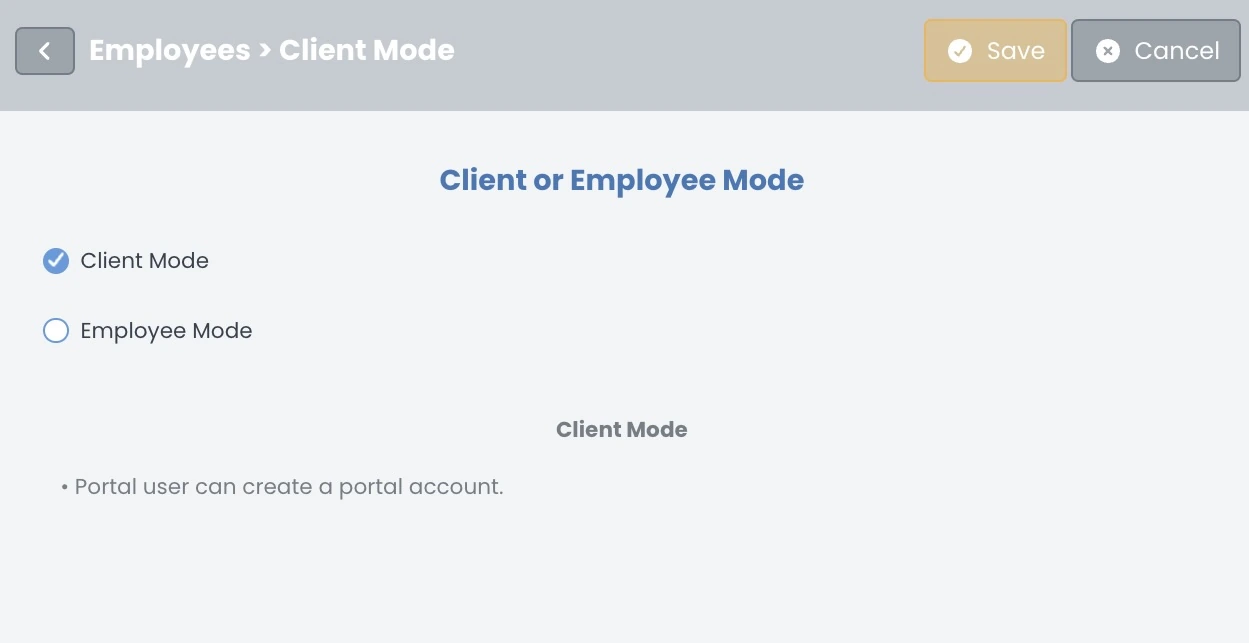
Employee Mode
An administrator or an agent with the appropriate permission creates the account. This suits an internal portal where your team manages access. Users sign in with the accounts created for them. Self-registration and editing profile fields are unavailable in this mode. The application calls these records Employees.
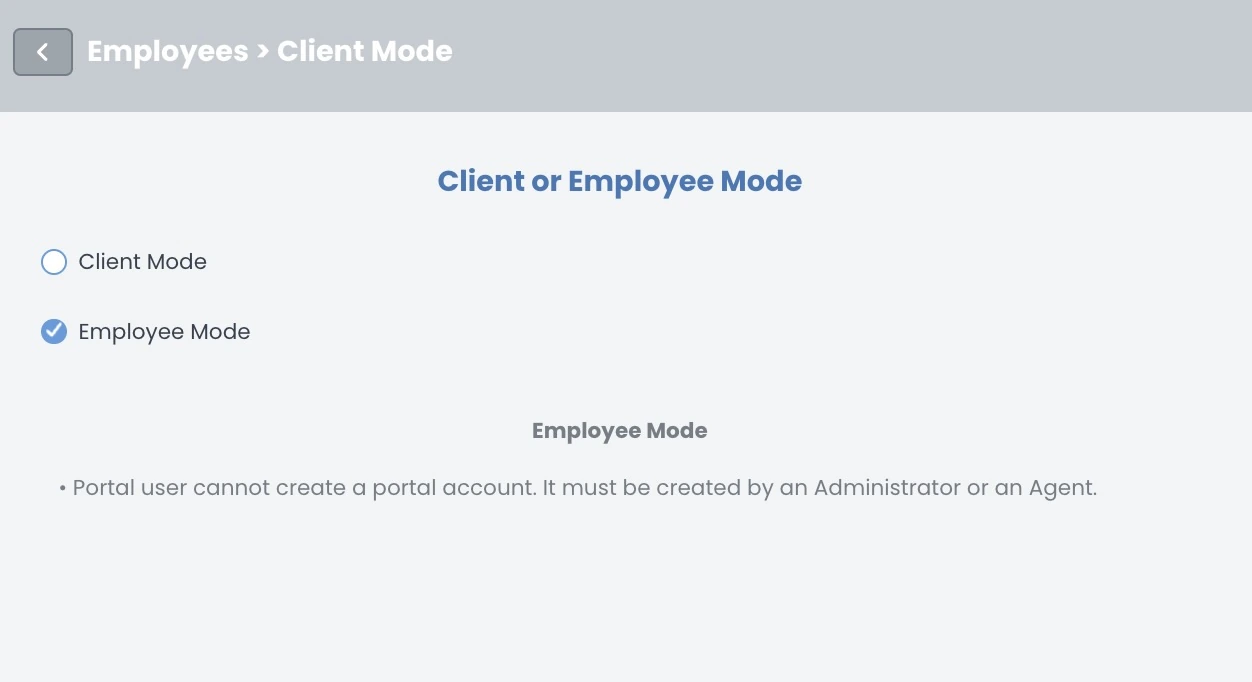
Saving the change
Select a mode and click Save. Before saving, click Cancel to keep the current mode. The setting changes registration and profile editing. Existing records and accounts stay in the organization. Portal access settings still determine which features users can use after signing in.